Form Layout
Form Layout allows you to build responsive forms with multiple columns, and to position input labels above or to the side of the input.
Form Layout automatically adjusts how fields are laid out in columns and rows to utilize the available space and avoid overflow. There are two discrete layouting modes that determine how this works and what APIs are available:
-
Auto-responsive mode, based on column width
-
Responsive steps mode, based on defined breakpoints
|
Note
|
Auto-Responsive Mode Is Recommended
Auto-responsive mode is recommended for new projects, as it provides a simpler configuration API and features not available in responsive steps mode. In Vaadin 26, auto-responsive mode will be enabled by default, and responsive steps mode will be a deprecated legacy feature. You can prepare for this change already today by enabling the feature flag |
Auto-Responsive Mode
In auto-responsive mode, Form Layout automatically determines the appropriate number of columns based on the column width and spacing, and the available horizontal space.
Source code
Java
formLayout.setAutoResponsive(true);Java
tsx
tsx
HTML
HTML
The sections below describe features and APIs available exclusively in auto-responsive mode.
Form Rows
In auto-responsive mode, all fields are laid out in a single column by default. To render multiple fields side-by-side, i.e. in multiple columns, they can be grouped into Form Rows.
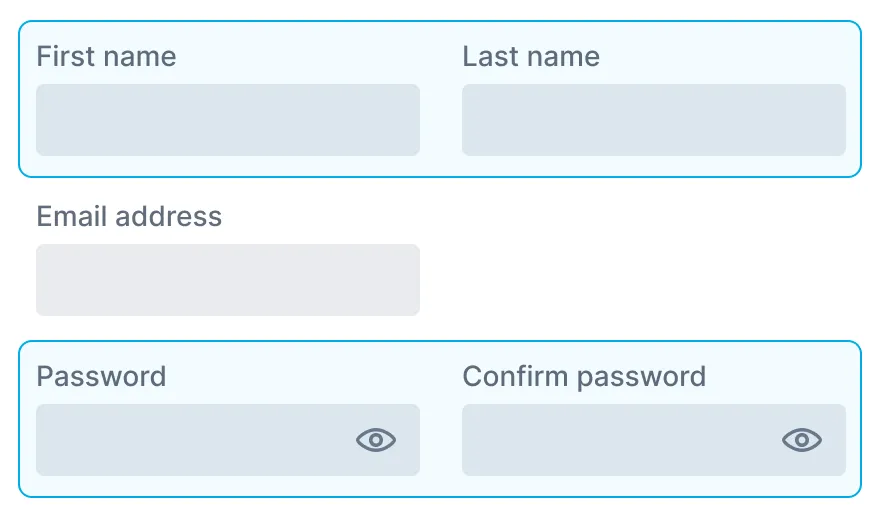
In the image above, Form Rows are highlighted in blue. Single-field rows do not need Form Row wrappers.
Form Rows automatically wrap their contents into multiple rows if the layout doesn’t have enough columns to fit them on a single row.
|
Note
|
UX Tip: Group Related Fields Into Rows
Forms are easier to understand if fields are grouped into rows based on how closely related they are, rather than arbitrarily. As an example, first name and last name are typically placed on the same row, while a date-of-birth field would typically be on a different row.
|
Label Position
By default, labels are rendered above the field. Labels can be rendered next to the field by switching the layout to labels-aside mode.
Source code
FormLayoutLabelsAside.java
form-layout-labels-aside.tsx
form-layout-labels-aside.ts
If the Form Layout isn’t wide enough to render labels next to fields, it falls back to rendering them above.
|
Note
|
UX Tip: Labels Aside Work Best In Single Column Forms
Forms with labels next to the fields can be confusing if fields are rendered in multiple columns. Although Form Layout supports combining side-labels with multiple columns, this combination is not recommended.
|
The width of side labels can be configured with the --vaadin-form-layout-label-width CSS property. The Flow API also has a dedicated setLabelWidth method for this.
In labels-aside mode, elements other than Vaadin input field components start in the label column by default. To align them with the fields instead, wrap them in Form Items (with or without labels):
Source code
Java
var nameInput = new Input();
formLayout.addFormItem(nameInput, "Name");

var saveButton = new Button("Save");
formLayout.addFormItem(saveButton);
Java
tsx
tsx
HTML
HTML
Alternatively, you can write custom CSS. When labels are rendered on the side, Form Layout sets the has-labels-aside attribute on its host element and the data-form-layout-has-labels-aside attribute on children. You can target these attributes to adapt your elements to labels-aside mode, for example:
Source code
CSS
/* To define a two-column layout with labels aside: */

custom-element[data-form-layout-has-labels-aside] {
  display: grid;
  grid-template-columns: var(--vaadin-form-layout-label-width) 1fr;
  column-gap: var(--vaadin-form-layout-label-spacing);
}

/* or, instead, to push the whole element to the input column: */

custom-element[data-form-layout-has-labels-aside] {
  margin-inline-start: calc(
    var(--vaadin-form-layout-label-width) +
    var(--vaadin-form-layout-label-spacing)
  );
}
Column Width
All columns in a Form Layout have the same width, which can be configured to any CSS length value in absolute or font-relative units like px, pt, em, rem, or ch (percentages and length keywords like auto or min-content are not supported).
Source code
Java
formLayout.setColumnWidth("8em");Java
tsx
tsx
HTML
HTML
Additionally, columns can be set to expand to fill any remaining available space in the layout:
Source code
FormLayoutExpandColumns.java
form-layout-expand-columns.tsx
form-layout-expand-columns.ts
This is typically combined with expanding fields to fill the full width of their columns, as described below.
Expanding Fields to Fill Their Columns
In auto-responsive mode, fields do not fill the columns they’re in by default (although they are prevented from overflowing them). This can be changed by enabling field expansion:
Source code
FormLayoutExpandFields.java
form-layout-expand-fields.tsx
form-layout-expand-fields.ts
If only certain fields should expand, this can be achieved by setting their widths to 100%.
|
Note
|
UX Tip: Fields Should Match Their Typical Content Length
Although a uniform field size may look nice, matching field widths to the typical length of their contents makes it easier to find the correct field and the form easier to understand. This can be achieved by leaving field expansion disabled, or by using column span to determine the relative widths of fields.
|
Column Limit
The number of columns can be limited by setting the maximum column count.
Source code
Java
formLayout.setMaxColumns(3);Java
tsx
tsx
HTML
HTML
Responsive Steps Mode
In responsive steps mode, columns are defined explicitly for a number of breakpoints, or steps, based on the layout’s width, and fields are automatically laid out in the available columns, wrapping to the next row as needed.
|
Note
|
Responsive Steps Mode Not Recommended
Auto-responsive mode is recommended for new projects, as it provides a simpler configuration API and features not available in responsive steps mode. In Vaadin 26, auto-responsive mode will be enabled by default, and responsive steps mode will be a deprecated legacy feature. You can prepare for this change already today by enabling the feature flag |
The default breakpoint configuration is one column below a layout width of 40em, and two columns above that.
Setting the Breakpoints
Each breakpoint defines the minimum layout width at which it is applied, and the number of columns rendered.
The following example sets
-
One column when the layout is less than 320 pixels wide
-
Two columns when the layout is at least 320 pixels wide
-
Three columns when the layout is at least 500 pixels wide
Source code
FormLayoutStepsBasic.java
form-layout-steps-basic.tsx
form-layout-steps-basic.ts
Note that
-
The smallest breakpoint should always be at zero pixels;
-
The breakpoints must be ordered by width.
Label Position
By default, labels are rendered above the field. Labels can be rendered next to the field by wrapping the fields into Form Items.
In responsive steps mode, fields wrapped in Form Items render their fields on the side by default, unless the breakpoint configuration defines the label position to be above the fields.
Source code
FormLayoutStepsLabelsAside.java
form-layout-steps-labels-aside.tsx
form-layout-steps-labels-aside.ts
The default breakpoint configuration renders Form Item wrapped fields with labels on the side, but reverts to labels above fields when the layout is less than 20em wide.
Note that
-
The field label must be applied on the Form Item rather than the field itself.
-
Fields wrapped into Form Items do not match the size of the wrapper by default. To avoid empty space or overflow in the column, set the widths of the fields to 100%.
|
Note
|
UX Tip: Labels Aside Work Best In Single Column Forms
Forms with labels next to the fields can be confusing if fields are rendered in multiple columns. Although Form Layout supports combining side-labels with multiple columns, this combination is not recommended.
|
Row Breaks
Fields can be forced to break into multiple rows using html <br> line break elements:
Source code
Java
formLayout.add(new TextField("First name"));
formLayout.add(new TextField("Last name"));
formLayout.getElement().appendChild(ElementFactory.createBr()); // row break
formLayout.add(new EmailField("Email address"));
Java
tsx
tsx
HTML
HTML
Field Width
In responsive steps mode, fields are automatically scaled to fit and fill the columns. Overriding this by setting minimum or maximum width on the field breaks the layout.
To prevent a field from stretching to fill the full width of the column, wrap it in a Form Item. Note that the field may overflow the Form Item and break the layout if its width is larger than the width of the column. To avoid this, set the field’s maximum width to 100%.
AI-Powered Form Filler
Use the commercial FormAIController to let users fill a Form Layout from natural-language input or attached files. See AI Form Filler Flow.
Miscellaneous
Form Item Usage
Form Item is a wrapper that gives an element a field-like layout with a label. Use it to provide a label for native HTML <input> elements or custom web components that have no label of their own:
Source code
Java
var nameInput = new Input();
formLayout.addFormItem(nameInput, "Name");
Java
tsx
tsx
HTML
HTML
Form Item connects the label to the wrapped element with the aria-labelledby attribute to make it available to screen readers. HTML input elements support this attribute out of the box. Custom web components, on the other hand, need to define an ariaTarget property that returns an appropriate element inside the component that should receive the aria-labelledby attribute.
Form Item only adds a label and wraps a single element. For a full-featured field with error messages and helper text, or to combine multiple inputs in one form field, use Custom Field instead.
In labels-aside mode, Form Item can also be used without a label to align non-field content, such as buttons, with the input column:
Source code
Java
var saveButton = new Button("Save");
formLayout.addFormItem(saveButton);
Java
tsx
tsx
HTML
HTML
Scrolling
Form Layout does not provide its own scroll area. To make a scrollable form, wrap the layout into a Scroller, and make sure that its size is undefined in the desired scroll direction.
Field Focus Order
Fields in multi-column Form Layouts always flow from left to right, then down, and the focus order of the fields will match this order. To make a form where focus flows from top to bottom, column by column, split the form into multiple single-column Form Layouts instead.
Buttons
Forms usually have buttons at the bottom for saving or cancelling changes. While these can be placed in the Form Layout itself, it is usually better to put them in a separate layout below the Form Layout. The Button component documentation provides more recommendations on buttons in forms.
7B8E4F98-540C-4622-A39F-907C95E9DFFD