Themes & Base Styles
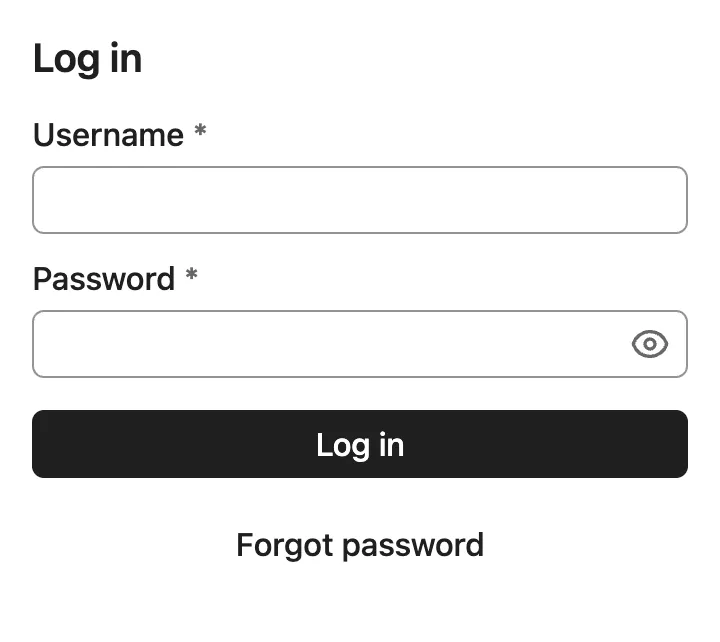
By default, Vaadin components are rendered with their minimal base styles. These can be a good starting point for creating a custom theme that should look significantly different than either of the two built-in themes.
|
Important
|
Avoid Mixing Theme-Specific Style Properties
When customizing themes or creating styles for custom components, don’t mix the use of Aura (i.e., --aura-*) and Lumo-specific (i.e., --lumo-*) style properties.
|
Default Theme
When no AppShellConfigurator is defined in your application, the Aura theme CSS is automatically loaded as the default theme. In development mode, a log message suggests how to explicitly configure the theme.
To explicitly configure Aura, add the @StyleSheet annotation to your AppShellConfigurator:
Source code
Java
@StyleSheet(Aura.STYLESHEET)
public class Application implements AppShellConfigurator {
}
Explicit configuration is recommended for production applications so the theme choice is clearly documented in code.
Aura Theme
Aura is the default theme for Vaadin applications, offering a modern and cohesive design for all official components. It works out of the box with built-in variants for common use cases, while also providing high-level CSS custom properties for easy customization. By computing colors, contrast, and surface hierarchy automatically, Aura lets you focus on your application while still achieving consistent, high-quality results.
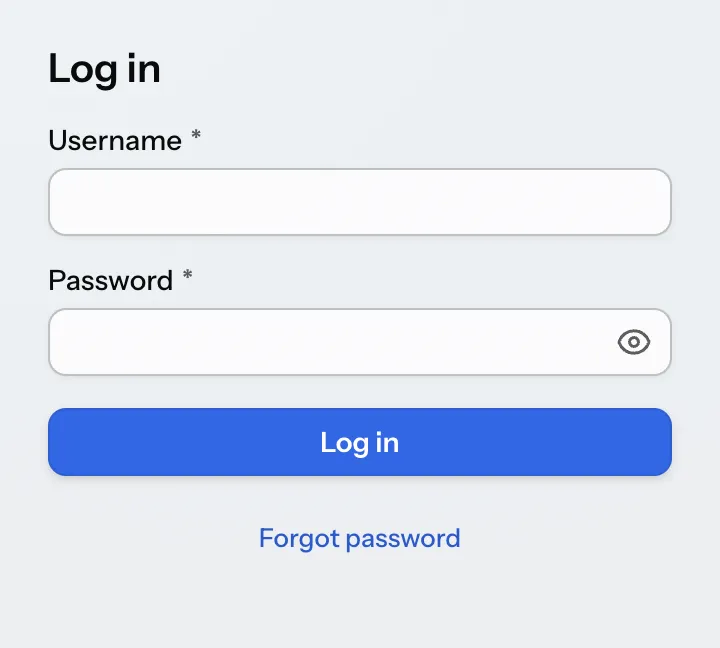
To load the Aura theme in your application, add it with a @StyleSheet annotation on your main application class. The Aura class provides a constant for the path to the Aura stylesheet that can be used with the @StyleSheet annotation.
Source code
Java
@StyleSheet(Aura.STYLESHEET)
@StyleSheet("styles.css")
public class Application implements AppShellConfigurator {
 ...
}
Themes should always be loaded before any other styles in your application.
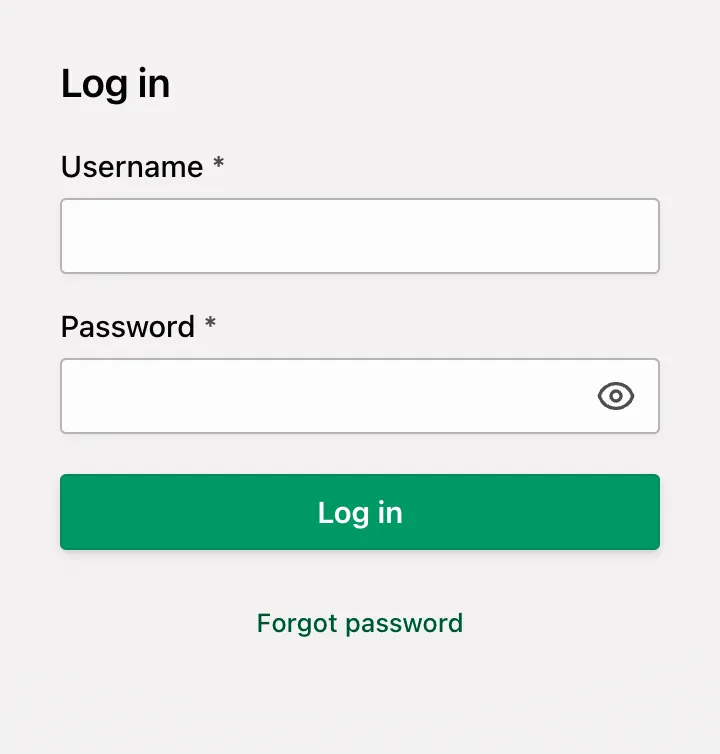
Aura includes a comprehensive set of style properties (custom CSS properties) that can be used to customize it without writing complicated CSS selectors.
Source code
CSS
html {
  --aura-accent-color-light: #009966;
  --aura-background-color-light: #f3f1f1;
  --aura-base-font-size: 15;
  --aura-base-radius: 0;
  --aura-base-size: 20;
  --aura-contrast-level: 2;
  --aura-font-family: var(--aura-font-family-system);
}
Lumo Theme
Lumo is a theme for Vaadin applications that offers a clean and consistent design for all official components. While Aura is the default theme, Lumo remains a dependable alternative with a strong focus on clarity, accessibility, and predictability. It provides a solid foundation for building applications or creating custom themes on top.
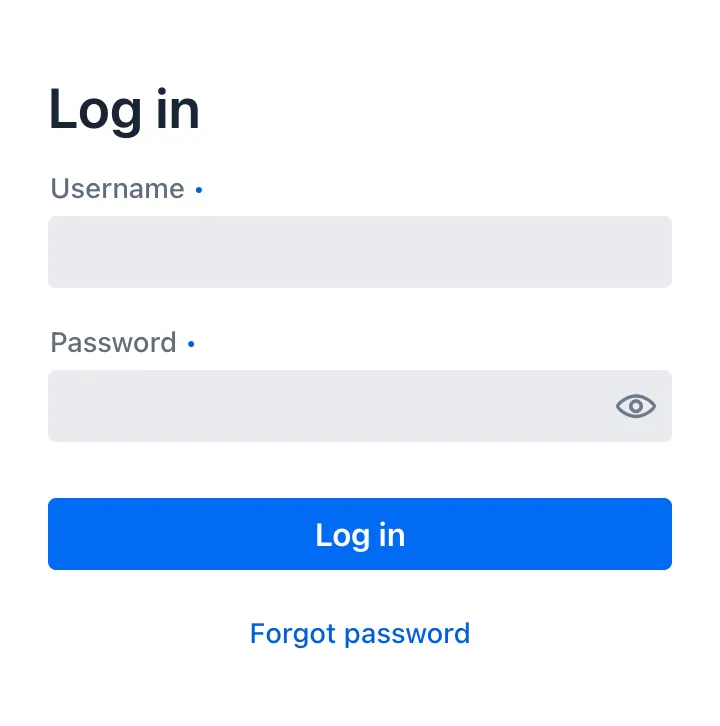
To load the Lumo theme in your application, add it with a @StyleSheet annotation on your main application class. The Lumo class provides a constant for the path to the Lumo stylesheet that can be used with the @StyleSheet annotation.
Source code
Java
@StyleSheet(Lumo.STYLESHEET)
@StyleSheet("styles.css")
public class Application implements AppShellConfigurator {
 ...
}
Themes should always be loaded before any other styles in your application.
Lumo includes a comprehensive set of style properties (custom CSS properties) that can be used to customize it without writing complicated CSS selectors. See the Lumo style property reference for a complete list.
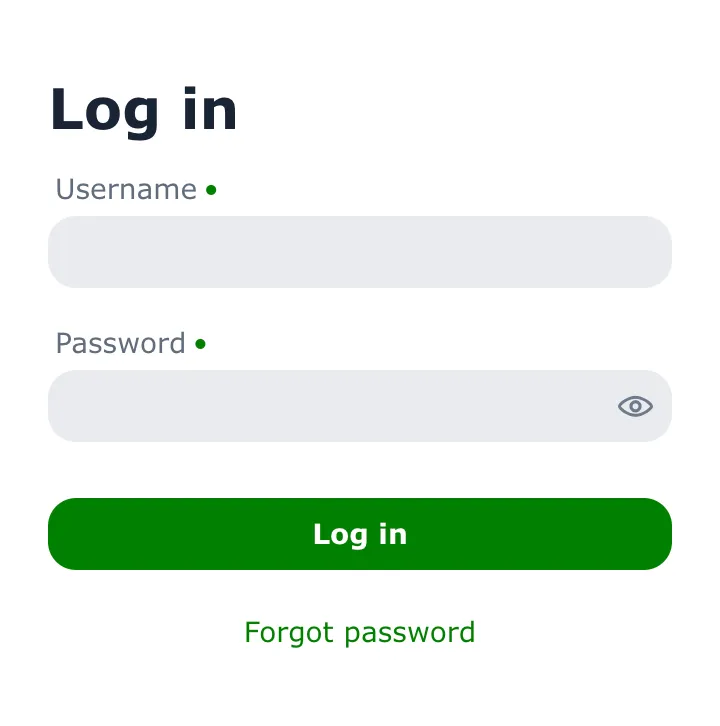
Source code
CSS
html {
  --lumo-primary-color: green;
  --lumo-primary-text-color: green;
  --lumo-font-family: Verdana;
  --lumo-font-size-m: 14px;
  --lumo-border-radius-m: 1em;
}
The Lumo Utility Classes, when enabled, can be used together with the Lumo theme.
Light & Dark Color Schemes
Both Aura and Lumo support a light and dark color scheme. By default, the light color scheme is used. You can configure a different color scheme for the application by adding the ColorScheme annotation to your main application class.
Source code
Java
@ColorScheme(ColorScheme.Value.DARK)
public class Application implements AppShellConfigurator {
    ...
}
The color scheme enum supports the following values:
ColorScheme.Value.LIGHT-
Always use the light color scheme.
ColorScheme.Value.DARK-
Always use the dark color scheme.
ColorScheme.Value.LIGHT_DARK-
Use the light or dark color scheme based on the user’s OS or browser settings, with a preference for the light color scheme.
ColorScheme.Value.DARK_LIGHT-
Use the dark or light color scheme based on the user’s OS or browser settings, with a preference for the dark color scheme.
The color scheme can be changed dynamically at runtime using the Page.setColorScheme(ColorScheme.Value) method.
Source code
Java
UI.getCurrentOrThrow().getPage().setColorScheme(ColorScheme.Value.DARK);|
Note
|
Charts in Flow Need Styled Mode
In Flow, Vaadin Charts uses fixed colors that don’t follow the color scheme, unless styled mode is enabled.
See Light & Dark Color Schemes for Charts.
|
|
Caution
|
The
dark Theme Name Is Not a Second MechanismAdding a It writes the attribute on the In tests, assert on |
Avoid using ui.getElement().getThemeList().add("dark") to switch to the dark color scheme globally.
getThemeList() is the generic theme name API that every component has, and it’s the right tool for variants such as small or contrast.
When using the ColorScheme.Value.DARK value specifically, Vaadin adds the theme="dark" attribute on the <html> element for backwards compatibility. You should not rely on it going forward.
In tests, assert on Page.getColorScheme() rather than on the theme attribute.
|
Note
|
Testing Color Schemes with Browser DevTools
You can emulate the user color scheme preference in browser developer tools:
|
6a974a47-d137-4d97-847c-80be46f011df