
Vaadin 25.2 is the second feature release in the 25.x line. It brings three main additions: you can put AI to work inside your data views, call native browser capabilities from plain Java, and turn your existing end-to-end tests into load tests.
You also get new and updated components, deeper Signals integration, tighter security defaults, and Copilot gains an in-app review workflow, a customizable palette, and an EU-hosted option.
Also shipping this week: Vaadin Enterprise Edition, a separate edition aimed at organizations building and maintaining business-critical Java applications, was announced alongside 25.2 — see the Vaadin EE announcement. A new release of Vaadin's Swing modernization tool, SwingBridge 1.2, also shipped — see the SwingBridge 1.2 announcement for what's in it. This post stays focused on the Vaadin 25.2 release.
AI-powered Grids, Charts, and forms (Preview)
25.2 adds three new AI controllers that let end users drive parts of your UI in plain language. They build data views and fill forms by describing what they want.
These are Preview features. Enable them with the feature flag com.vaadin.experimental.aiComponents. APIs may still change, so try it out and let us know what you think.
AI-generated Grids and Charts
The new GridAIController and ChartAIController make it easy to allow end users to create their own data grids and charts through natural-language prompts. The prompt is sent to an LLM, together with a database schema description. The LLM generates an SQL query and a grid or chart configuration, which can be applied to a Grid or Chart instance in the UI.
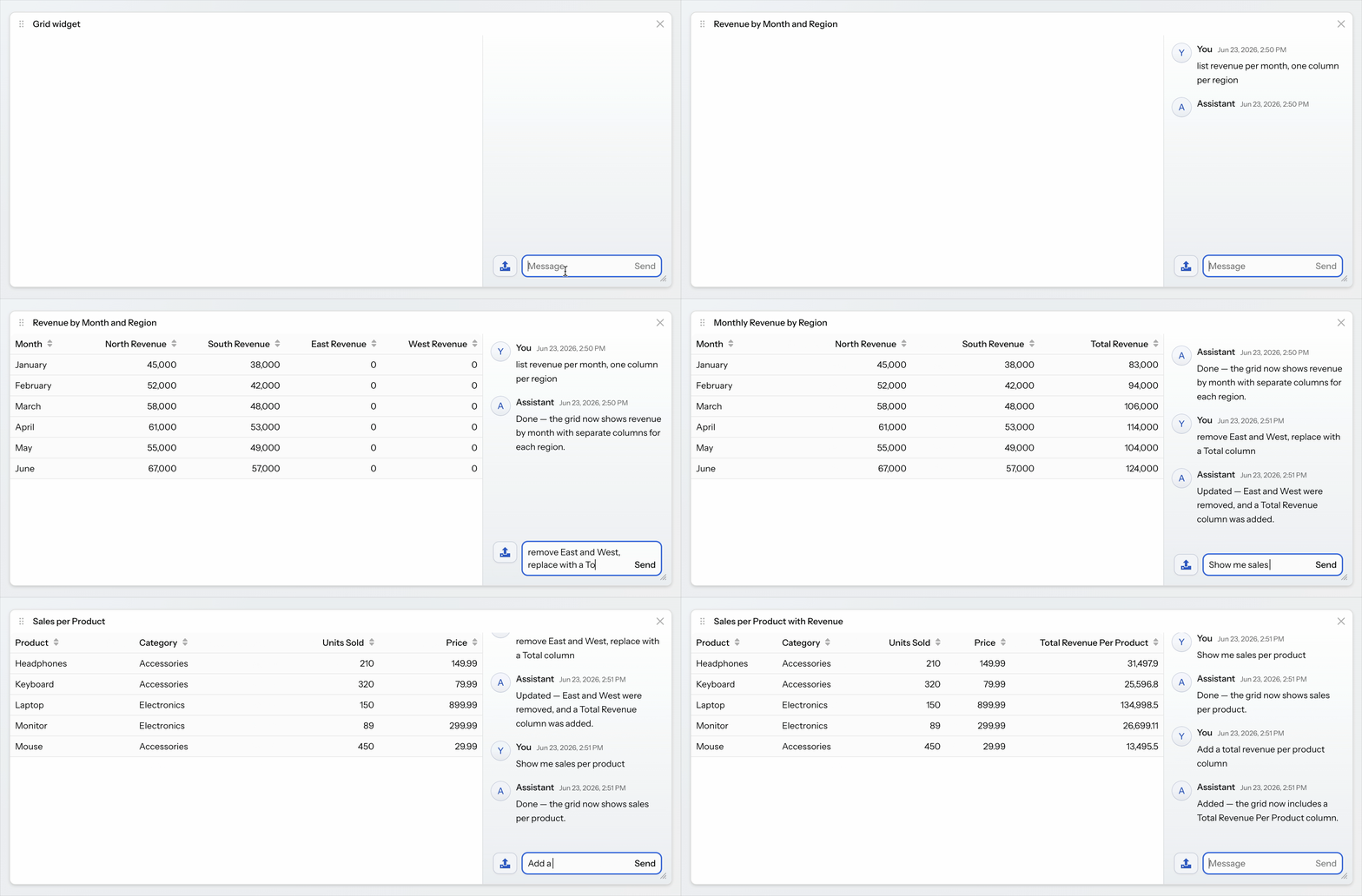
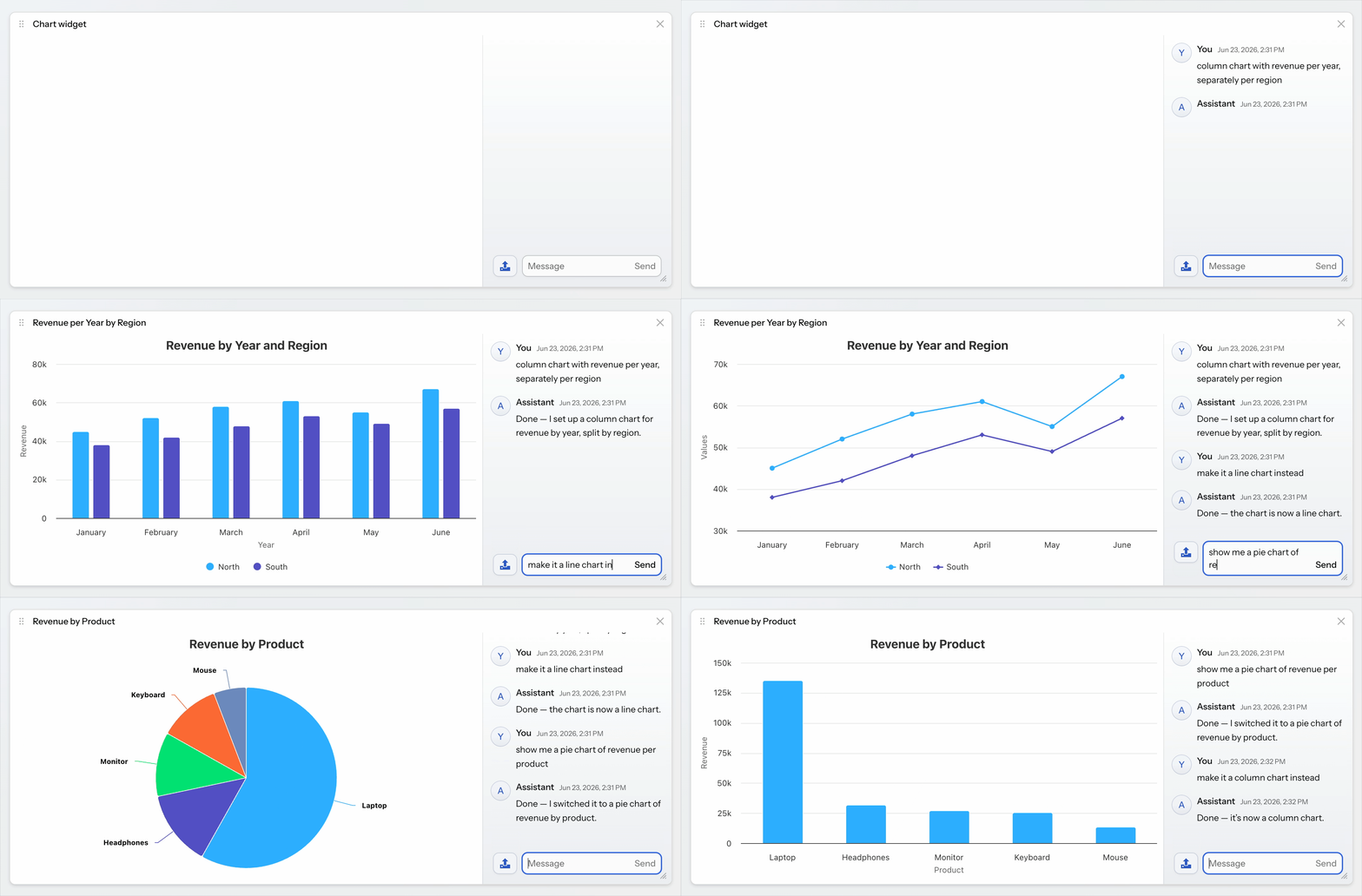
The SQL query and grid/chart configuration can be stored as strings e.g. in a database, from where they can be reloaded and rendered with fresh data without further use of AI.
The data returned by the query is never sent to the LLM, making this a safe choice for applications handling sensitive data. The DatabaseProvider used for these should be configured with a read-only database account, however.
These features are designed to work together with the Dashboard component, making it easy to implement end user configurable dynamic dashboards.
AI form-filler
FormAIController provides LLM-based automatic form-filling based on prompts and/or uploaded documents or images by connecting a layout containing Vaadin input field components with an AI prompt and/or file upload components. Drop an image or document containing the data you want to fill the form with, and the controller passes it to an LLM that parses it, finds the relevant information, and fills in the fields. The 25.2 version is an early preview of this functionality.
Native browser APIs in Java
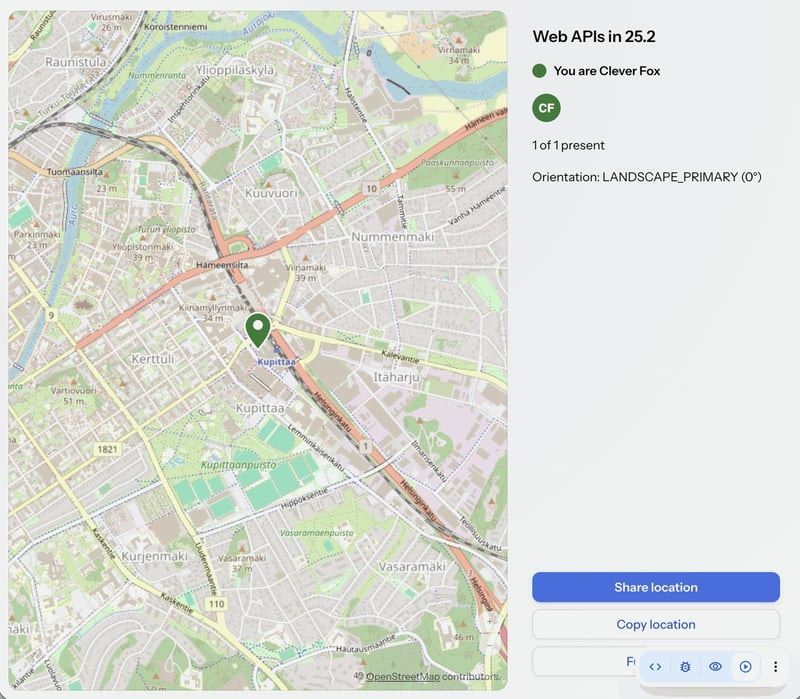
Seven browser capabilities are now available from server-side Java, with no JavaScript required. Geolocation and the Clipboard are the ones most apps will reach for first; the rest cover going fullscreen, keeping the screen awake, page visibility, native sharing, and screen orientation.
Geolocation
The Geolocation API gives your Java code access to the browser's location. Use Geolocation.getPosition() for a single reading, or Geolocation.watchPosition(component) for a continuous stream tied to a component's lifecycle. The watch starts when the component attaches and stops automatically when it detaches. You can consume readings two ways: a signal style for "always show the latest position," or a listener style for "process every reading in order."
Geolocation.getPosition(this,
 pos -> map.setCenter(new Coordinate(pos.coords().longitude(),
 pos.coords().latitude())),
 error -> Notification.show("Couldn't get your location"));
The browser handles its own permission dialog, and the API requires a secure context (HTTPS), except on localhost during development.
Clipboard
The Clipboard API lets your Java code copy text, HTML, and images to the user's clipboard. Actions bind to a clickable component and run during the click event, so the browser sees a genuine user gesture and allows the write. A copy button is one line:
Button copy = new Button("Copy");
Clipboard.onClick(copy).writeText("Hello, world!");
Clipboard.onClick() works with any component that fires a click, such as a context-menu item, an icon, or a list row. If you need to know whether the write succeeded, the write* methods have overloads that report back to onCopied and onError consumers on the UI thread.
Clipboard access goes both ways. Beyond writing text, HTML, and images, the API can read the clipboard on the server and react to browser paste events, including pasted files, so you can build paste-to-upload and similar flows, not just a copy button.
Fullscreen
The Fullscreen API can take the whole page or a single component fullscreen, exit on demand, and expose the current state as a reactive signal. Like Clipboard, entering fullscreen binds to a component's click so it runs inside a genuine user gesture:
Button fullscreenButton = new Button("Fullscreen video");
Fullscreen.onClick(fullscreenButton).enter(videoPanel);
Exiting doesn't need a gesture, so you can call Fullscreen.exit() from anywhere. Fullscreen.stateSignal() lets you drive the UI based on whether the page is currently fullscreen, or hide the control entirely in browsers that don't support it.
Screen Wake Lock
The WakeLock API keeps the screen from dimming or locking, which is useful for dashboards, kiosks, and other always-on displays. Request and release the lock from Java, and check whether it's currently held with WakeLock.activeSignal().
Page visibility
A reactive signal reports whether the current page is visible or backgrounded, so your server-side code can react when the user switches tabs or away. You might pause polling or animations while the page is hidden, then resume when it comes back.
Web Share
The WebShare API opens the device's native share sheet from server-side Java, so users can share content through the apps and channels they already use. Like Clipboard and Fullscreen, sharing runs inside a genuine user gesture by binding to a component's click, and you can check whether sharing is available before showing the control.
Screen orientation
A reactive signal reports the current screen orientation. You can lock the screen to a specific orientation or release it again, which is handy for views that only make sense one way around, such as media or drawing surfaces.
Load testing from the tests you already have
You can now turn your existing end-to-end tests into realistic load tests without writing separate scripts. A Vaadin Maven plugin converts TestBench or Playwright tests into Grafana k6 load tests in three stages:
- Record. A TestBench test runs through a recording proxy that captures HTTP traffic as a HAR file.
- Convert. The HAR is converted into a k6 script, with Vaadin-aware refactoring applied: dynamic session-ID extraction, CSRF token handling, UI and Push ID management, and a configurable target server. Form values are extracted into a CSV for per-user variation.
- Run. The k6 script runs with a configurable number of virtual users and duration.
Making a test recordable takes one line in @BeforeEach, and the conversion uses pure Java utilities, so there's no Node.js required. Load testing uses TestBench, so it requires a commercial Vaadin subscription. The toolkit is new and experimental in 25.2, so expect the API and configuration to evolve.
Browserless testing also improves. The new BrowserlessApplicationContext API models Vaadin's runtime hierarchy directly (application, user, and window), so you can drive multiple users and multiple windows in a single test. Use it to assert that a shared service exposes the same state to two users, that one user's changes don't leak into another's session, or that per-window UI state stays isolated. For the common single-user, single-window case, the existing BrowserlessTest and JUnit 6 extensions remain the simplest path. Combined with load testing, this gives you a fast verification loop at the JVM level, which is useful when you're reviewing AI-generated UI code.
New and updated components
A few components graduate from Preview to general availability in 25.2. If you enabled any of them with a feature flag in 25.1, you can drop the flag and use them as standard components now:
- Slider. A numeric input where users drag a thumb along a track. Changes in 25.2: Use
DecimalSliderorIntegerSliderfor a single value, or the two-thumbDecimalRangeSliderandIntegerRangeSliderto select a range. Optional min/max labels, an always-visible value bubble, configurable step size, full keyboard support, andBinderintegration. - Badge. Status indicators and notification bubbles, with variants for success/warning/error, plus
icon-only,number-only,small, anddot(a notification indicator that stays available to screen readers). - Master-Detail Layout. A responsive side-by-side or top/bottom layout that can switch to an overlay on smaller screens. 25.1 simplifies the API for configuring fixed or expanding areas (
setMasterSize,setDetailSize,setExpandMaster/setExpandDetail) and defining whether the overlay covers just the master area or the whole page. - Modular Upload components. Compose upload UIs from
UploadManager,UploadButton,UploadDropZone, andUploadFileListinstead of the single monolithic upload component. - MessageList attachments. Attach files to
MessageListitems, a common need in AI chat experiences.
Minor component features
- ComboBox can now automatically scroll to and focus the currently selected item in the dropdown through the
setFocusSelectedItemmethod. - Multi-Select Combo Box can now collapse all selected items into the overflow chip whenever they don’t all fit, using the
setCollapseChipsAPI. - Context Menu and Menu Bar now support tooltips on dropdown menu items. This can also be enabled for disabled menu items by enabling the
accessibleDisabledMenuItemsfeature flag.
Signals keep maturing
Signals went production-ready in 25.1, and 25.2 deepens the integration further. Component bindings like bindVisible, bindEnabled, and two-way bindValue let components react directly to signal changes, and you can derive reactive visibility with map(). For data components, a ListSignal combined with Signal.effect() keeps a Grid, ComboBox, or any HasDataProvider component in sync without manual data-provider management:
ListSignal<String> items = new ListSignal<>();
Grid<String> grid = new Grid<>();
Signal.effect(grid, () -> grid.setItems(items.getValues().toList()));
The new Geolocation API is signal-aware too (positionSignal(), availabilityHintSignal()), and the router got a signal for the current location (UI.routerStateSignal()), so signals now show up in built-in framework APIs, not just in your own state.
Copilot
Vaadin Copilot, free for anyone with a Vaadin.com account since 25.1, gets several additions in 25.2:
- Annotations. Leave comments on views and components, track them through pending, resolved, and outdated states, and ask Copilot's AI to resolve a comment for you. It's a lightweight review workflow that lives inside the running app.
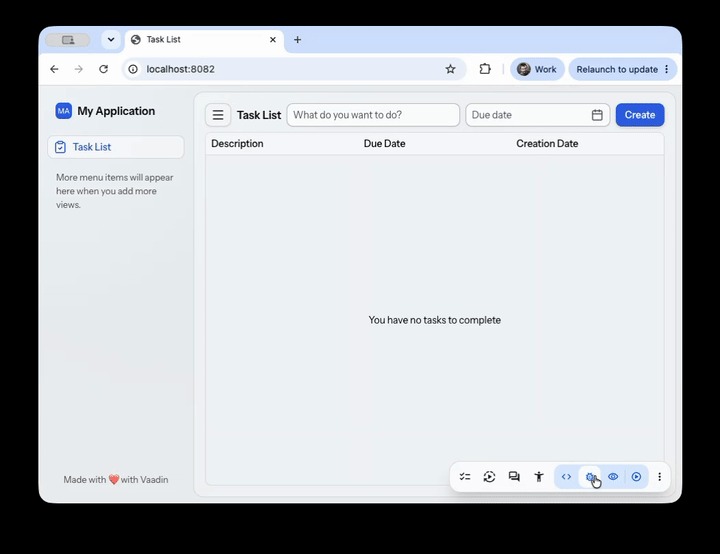
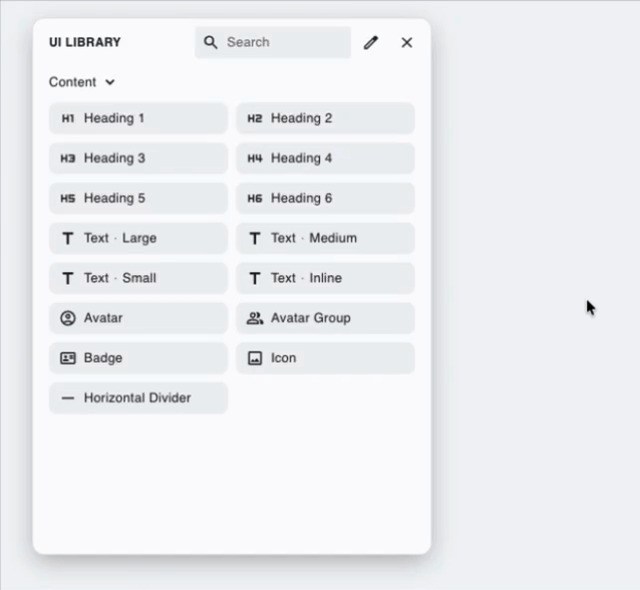
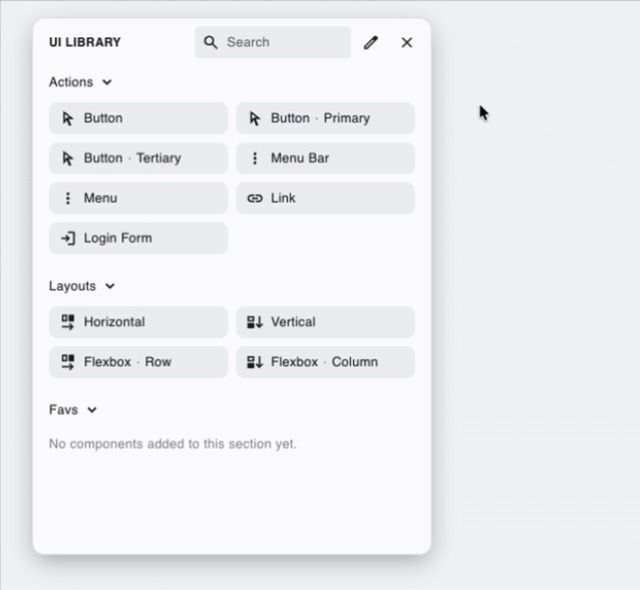
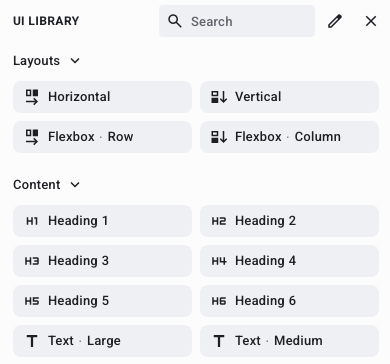
- Customizable component palette. Organize the palette into your own sections, mark favorites, and include your custom components alongside the built-in ones.
- A new icon library for view menus, combining Line Awesome and Vaadin Icons.
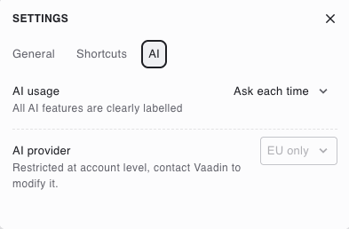
- UI/UX improvements, including context navigation to drill into and back out of components, smarter badge positioning, and a settings panel for size, theme, toolbar behavior, and reduced motion.
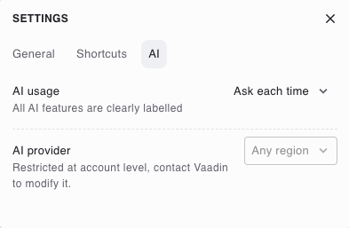
- An EU-sited option. Copilot can run fully EU-hosted, with the AI provider and region restrictable at the account level. This helps when data residency is a requirement.
Security hardening
25.2 tightens several defaults so applications are safer out of the box:
- Safe-by-default URLs.
Anchor,IFrame, andPage.open()now validate URL schemes, so unsafe values such asjavascript:are blocked by default — with escape hatches for the rare cases you genuinely need them. - Clickjacking protection by default. Vaadin now sends an
X-Frame-Optionsheader by default. If you intentionally embed your app in a cross-origin frame, this is a behavior change to be aware of. - Safer untrusted HTML. The
Htmlcomponent gainsSafelistoverloads, so you can render untrusted HTML through a jsoupSafelistrather than sanitizing it yourself. - Supply-chain hardening. By default, Vaadin won't install npm packages published within the last day, giving the ecosystem time to flag and pull a compromised release before it reaches your build. The window is configurable if you need it shorter or longer.
These defaults suit teams with security and compliance requirements. This is the same audience as Vaadin Enterprise Edition, which ships alongside this release. Configuration details are in the docs.
Upgrading to 25.2
25.2 is a feature release on the 25.x line, so most apps upgrade cleanly. There are a few breaking and behavior changes to be aware of, mainly around the Signals API, build and tooling configuration, and the security defaults above. Review the official release notes and the upgrade guide before bumping your version. The upgrade guide walks through each change.
Also note: free maintenance for the 24.x line ended on June 16; see the announcement for more information.
Try it out
Update your vaadin.version to 25.2 and let us know what you build. Full details are in the release notes: https://github.com/vaadin/platform/releases/tag/25.2.0
Join the live walkthrough. We'll demo the highlights and answer your questions on Thursday, July 2, 15:00 CEST / 9:00 AM ET on YouTube.
Found a bug or have feedback on a Preview feature? File it on GitHub or share it in the Forum.