
Vaadin's new Dashboard component is built to fully conform to WCAG 2.1 AA — the accessibility standard underpinning both the EU's Accessibility Act and the US's ADA/Section 508 requirements. Here's how we got there, and the specific challenges that come up when you combine strict accessibility conformance with a fully end-user-configurable UI.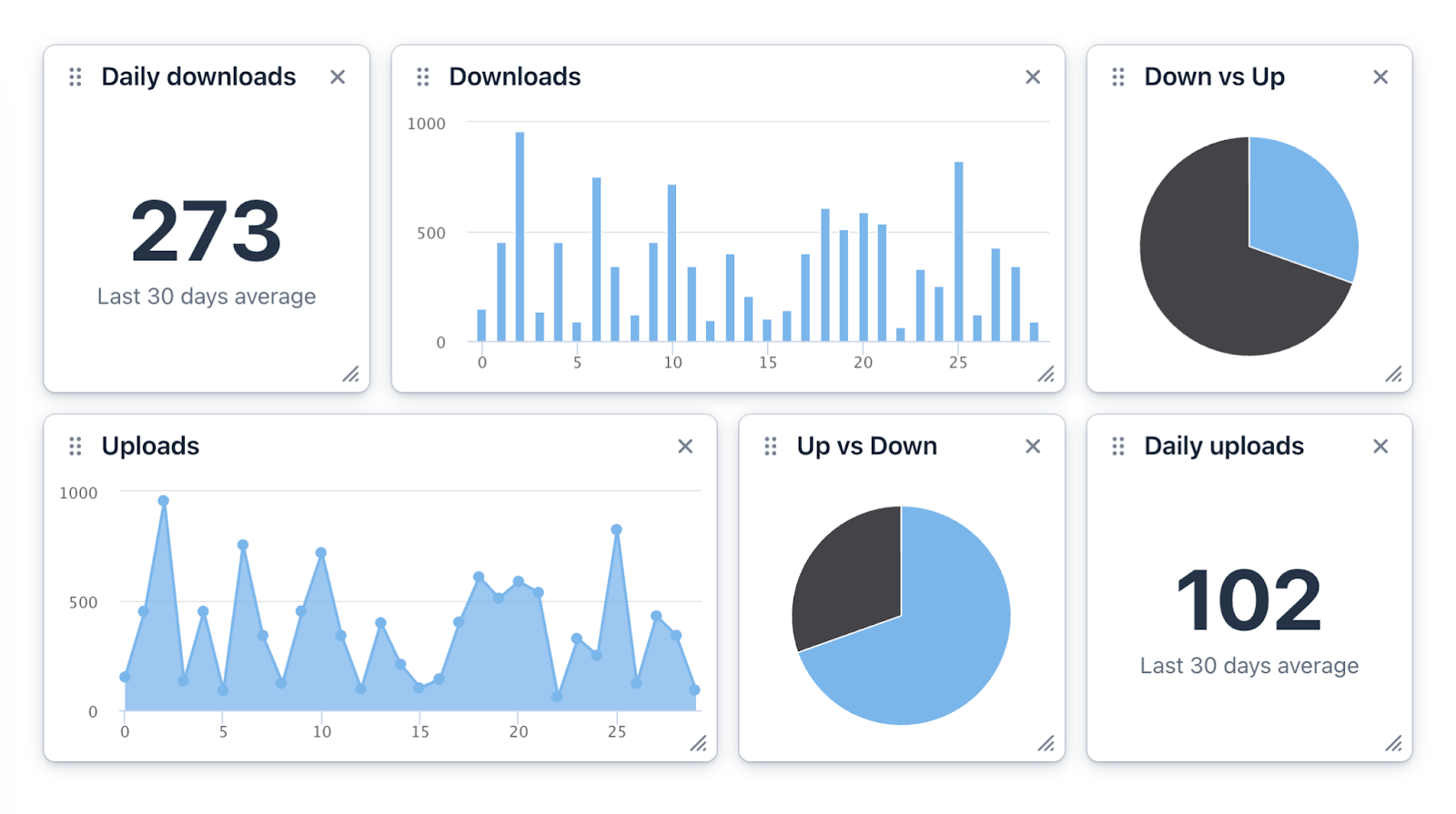
When you think about business applications, two UI patterns probably come to mind: CRUD (create, read, update and delete) views consisting of an item listing and a form for editing, and dashboards.
While CRUDs are probably where users spend most of their time, the dashboard is usually what they see when they log in at the start of their day. It provides them with an up-to-date summary of the most important metrics and other data, like KPIs, statistics, trends and the latest events or items of interest. Many consumer apps have also adopted this pattern, especially in the domain of personal finance and fitness tracking.

Dashboards may seem almost trivially simple at first glance: they’re really just layout grids that provide structure and alignment to the various pieces of content placed in them, usually with some styling applied to those pieces – the widgets – for a bit of visual guidance and separation between them.
When you start to implement your dashboard, however, you often realize that making that layout scale appropriately for different viewport sizes is a bit more complicated than it may seem: the widgets may need to scale and reflow to accommodate everything from 6” mobile screens to 27” desktop monitors to 42” wall-displays.
Depending on the business domain where the dashboard will be used, accessibility requirements may also come into play: you need to ensure keyboard usability, satisfy color contrast requirements, and even make sure users of assistive technologies like screen readers can use it.
An even bigger challenge appears if the dashboard needs to be configurable, allowing end users to choose the widgets most important to them, to scale them according to their needs, and to order them so that the most important information is immediately visible at first glance without scrolling.
With all that in mind, it was obvious to us that we needed to provide developers with tools to help them fulfill those requirements. The end result of that realization was the new Dashboard component, the preview version of which shipped in Vaadin 24.6, with a stable release in 24.8.
Achieving full conformance to the WCAG 2.1 level AA accessibility guidelines – which form the basis of accessibility requirements in the EU and US – in combination with end user configurability, was one of the most interesting challenges the Vaadin Design System team has faced, so we decided to share some of those challenges and the solutions we came up with in this blog post.
It’s a long read, but we think many developers would appreciate a glimpse into this part of the UI component design process at Vaadin, and maybe get inspired to learn more about web accessibility in general.
Feature Overview
You can check out all the features of the component on its documentation page, but here’s a summary to save you a browser tab:
Responsive Layout
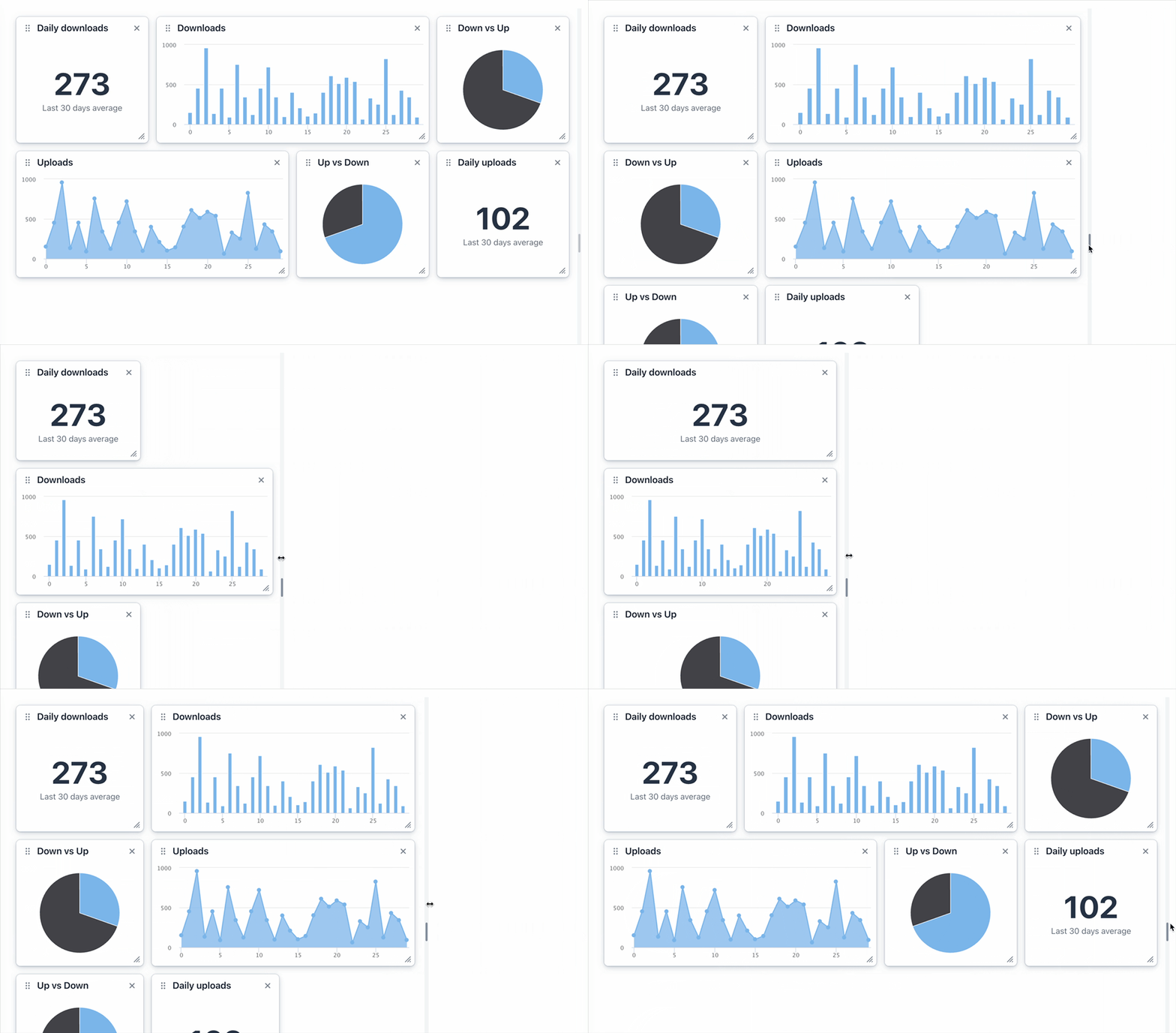
Responsive grid-based layout where widgets automatically scale and reflow to accommodate the available horizontal space. The number of columns in which widgets are rendered is automatically adjusted based on the configured column width, and widgets spanning multiple columns automatically scale down to smaller spans as needed.
Static Dashboard Layout
For use cases where the dashboard’s contents don’t need to be end user configurable, the component can be used simply as a layout, populated by adding the widgets in the desired configuration declaratively in Hilla or through the familiar add API in Flow. It would have been easy to stop here, but where’s the fun in that?
Dynamic, User-editable Dashboards
For more advanced use cases, where end users should be able to choose which widgets are included, in which order, and how large they should be rendered, required adding an entire layer of additional functionality to the component:
- Drag and drop gestures, and keyboard-based equivalents, for moving and resizing widgets
- Actions for removing widgets
- The dashboard needs to maintain an internal model of its contents, so that the current configuration can be persisted e.g. into the user profile in a database.
Accessibility Requirements
The Vaadin Design System has WCAG 2.1 level AA as its current accessibility conformance target. In practice this means that all Vaadin components need to have
- Sufficient color contrast, either by default or through simple configuration APIs, to ensure users with vision deficiencies can perceive all their essential elements;
- Keyboard-only interaction support for users unable to use pointer devices like mice or touch screens;
- Single-click pointer-based alternatives to multipoint or path-based gestures, for pointer-device users unable to perform gestures like drag and drop;
- Support for assistive technologies like screen readers for severely vision impaired users: this is essentially a combination of keyboard-usability and HTML semantics.
Admittedly, not all Vaadin components fulfill all of these requirements today – we are still working on filling some of the accessibility gaps in older components – but we naturally wanted to get things right from the beginning with the Dashboard.
Color Contrast
The Dashboard component really only has four elements whose color contrast is relevant for WCAG conformance: the widget title, the interactive elements in edit mode, and the focus and selection outlines:
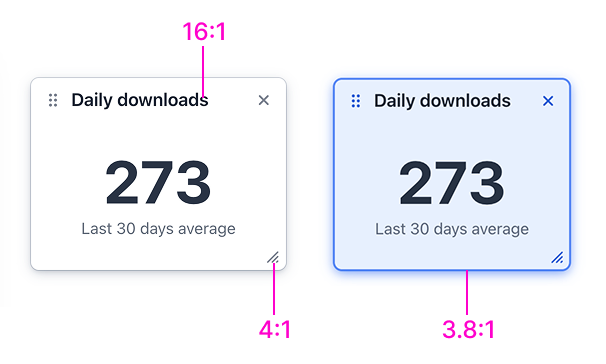
The widget title has a contrast ratio of 16:1 against the background, which is plenty above the 4.5:1 for regular-size text and 3:1 for large text. The contrast of the icons in the interactive elements is 4:1, which is above the 3:1 requirement for non-text graphical elements, and the selection/focus outline has a contrast of 3.8:1.
The widget’s border when neither focused nor selected has a contrast ratio of 1.3:1 against a white background, which falls far below the 3:1 requirement for graphical elements, but as the widget itself is not interactive, and its title provides a sufficient visual indication of its location, contrast requirements do not apply to it. It is, however, easy to increase the border’s contrast by configuring the border color globally through the --vaadin-dashboard-widget-border-color CSS property.
Semantics
Users without vision impairments understand the UI primarily through visual cues: buttons look like buttons, bigger text elements denote sections of content, color is often used to indicate states like selection, etc. Users with severe vision impairments instead rely on screen readers to convey the contents of the page through a synthesized voice. Appropriate HTML semantics are essential for screen readers to correctly parse and convey the structure of the page, and the identify and function of various elements.
Semantics are generally provided in two ways:
- Using HTML elements with appropriate built-in semantics, e.g.
<button>for buttons, heading elements<h1>..<h6>for headings, or<nav>for a navigation element; - Providing alternative or additional semantics to HTML elements using ARIA attributes, such as the
roleattribute for overriding its default semantic role (e.g.<div role=”button”>) or thearia-selectedattribute to inform screen reader users that an element (such as a list item) has been selected.
Dashboard Layout Semantics
Neither HTML nor ARIA provide a specific semantic role that would be unambiguously appropriate for the dashboard layout.
The columns and rows in which widgets are rendered in the dashboard layout are certainly an essential visual feature, but they have no information-bearing purpose, and are completely irrelevant for screen reader users. The order of widgets is similarly irrelevant, except that users typically desire the most important widgets to come first.
We initially considered using list semantics on the dashboard, corresponding to what you would get with an HTML ordered <ol> or unordered <ul> list, whereby each widget would have been a list-item (corresponding to a <li> element), with the assumption that it would make it easier to provide a good screen reader UX for reordering of widgets in edit-mode. After some research, however, we decided against it, as we didn’t see it providing any practical benefit in current screen readers.
We also considered applying the ARIA role=”region” to the dashboard layout. This is a landmark role, which screen readers typically include in a page structure overview and provide shortcuts for the user to quickly jump into. We ultimately decided against that as well, as the UI containing the dashboard may prefer to include other elements in the same landmark region, such as a heading, an editing toolbar, or a widget palette, in which case having the same role on the dashboard itself would have been potentially confusing.
So in the end, we left the dashboard layout without a semantic role altogether. This means that, from a screen reader users’s point of view, the dashboard is a more or less invisible wrapper around the widgets. Developers can easily apply a role attribute to the component themselves, however, e.g. to apply the region role.
Widget Semantics
Widgets have the ARIA role article (corresponding to the HTML <article> element). This role is appropriate for elements that constitute pieces of content that are independent of each other, and would make sense even on their own separate page, which is what dashboard widgets are typically like. The article role helps define a boundary for the content labelled by the widget title, and many screen readers provide overviews and shortcuts to them, similarly to landmark elements.
The widget title has the role heading, corresponding to an HTML <h1>..<h6> element. Screen readers provide shortcut lists (called rotors) for all headings on the page, ensuring that the user can easily locate the widgets they’re looking for.
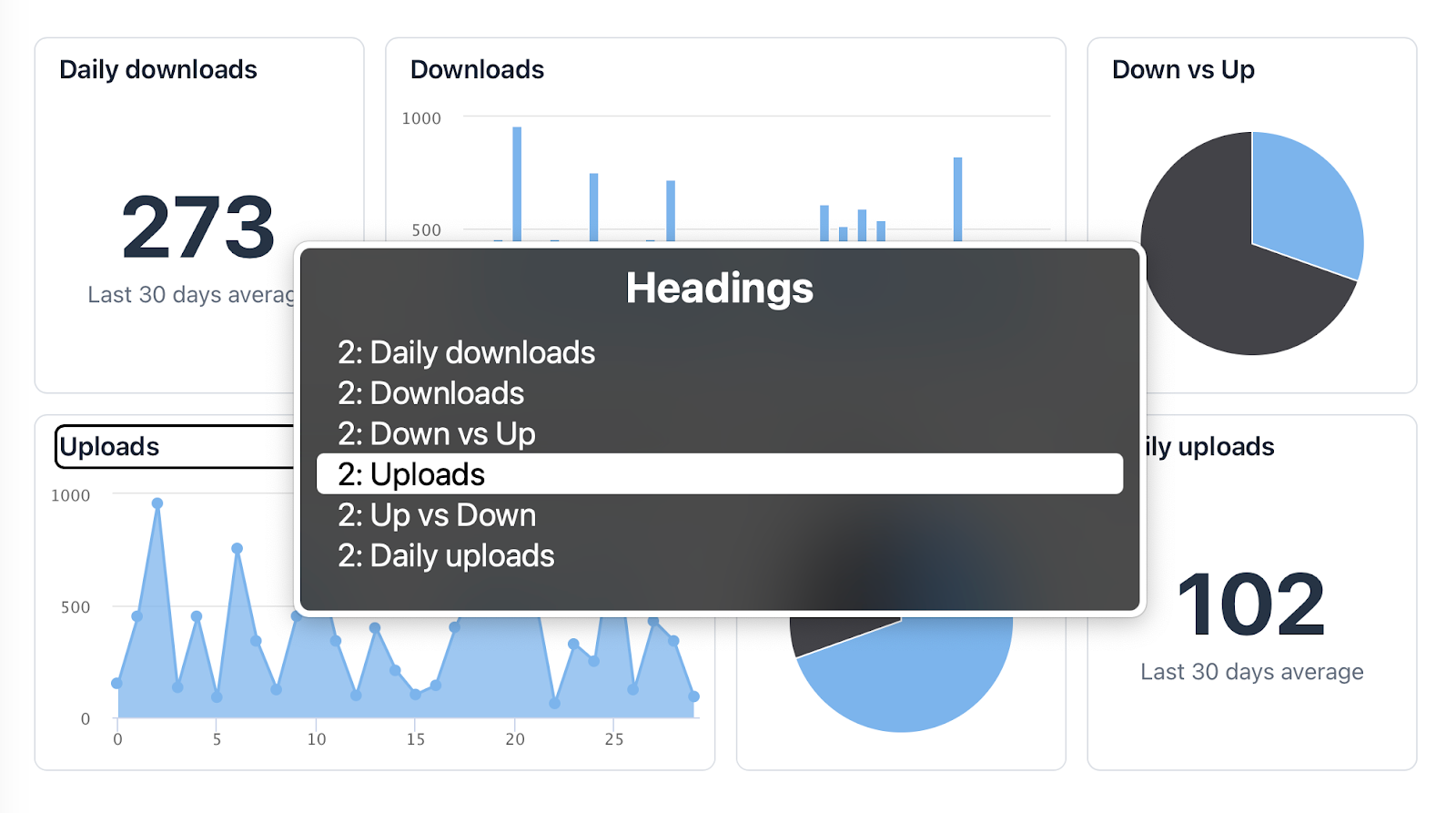
The benefit of using the heading role instead of one of the six heading elements is that its heading level, set through a separate aria-level attribute, is easier to change dynamically. This is important as the heading level should fit correctly into the page’s heading structure: pages should have a single <h1>, followed by <h2> elements labelling each major part of the page, within which subsections can be further labelled by <h3> elements, and so on. As we cannot know the heading level the area containing the dashboard, the default, we default the widget titles to <h2>, but provide an API for overriding it.
<vaadin-dashboard>
├── <vaadin-dashboard-widget>
│ └── <header>
│ ├── <div role="heading" aira-level="2">Daily downloads</div>
│ └── <div> widget contents </div>
...
└── <vaadin-dashboard-widget>
 └── <header>
 ├── <div role="heading" aira-level="2">Daily uploads</div>
 └── <div> widget contents </div>
Simplified view of the HTML structure of a Dashboard
generic
├── article
│ └── header
│ ├── Heading, level 2, "Daily downloads"
│ └── [widget contents]
...
└── article
 └── header
 ├── Heading, level 2, "Daily uploads"
 └── [widget contents]
Simplified view of the semantic structure of a Dashboard, as seen by screen readers
Side note about heading levels
Originally, the HTML specification defined a Document Outline Algorithm that essentially indicated that heading levels inside sectioning elements, like <article>, should be parsed within the context of their sectioning container, so that the topmost heading within an <article> could always be an <h1>.
Unfortunately, this algorithm was never actually implemented by any browser, and the WHATWG – the working group responsible for maintaining the HTML standard – decided to remove it from the spec in 2022.
Editing Interactions
This is where things got really interesting. Drag gestures are probably the way most users expect to be able to move and resize widgets. However, some users are not able to use a pointer device like a mouse or a touch screen, and for some they can be difficult to perform even with a pointer device.
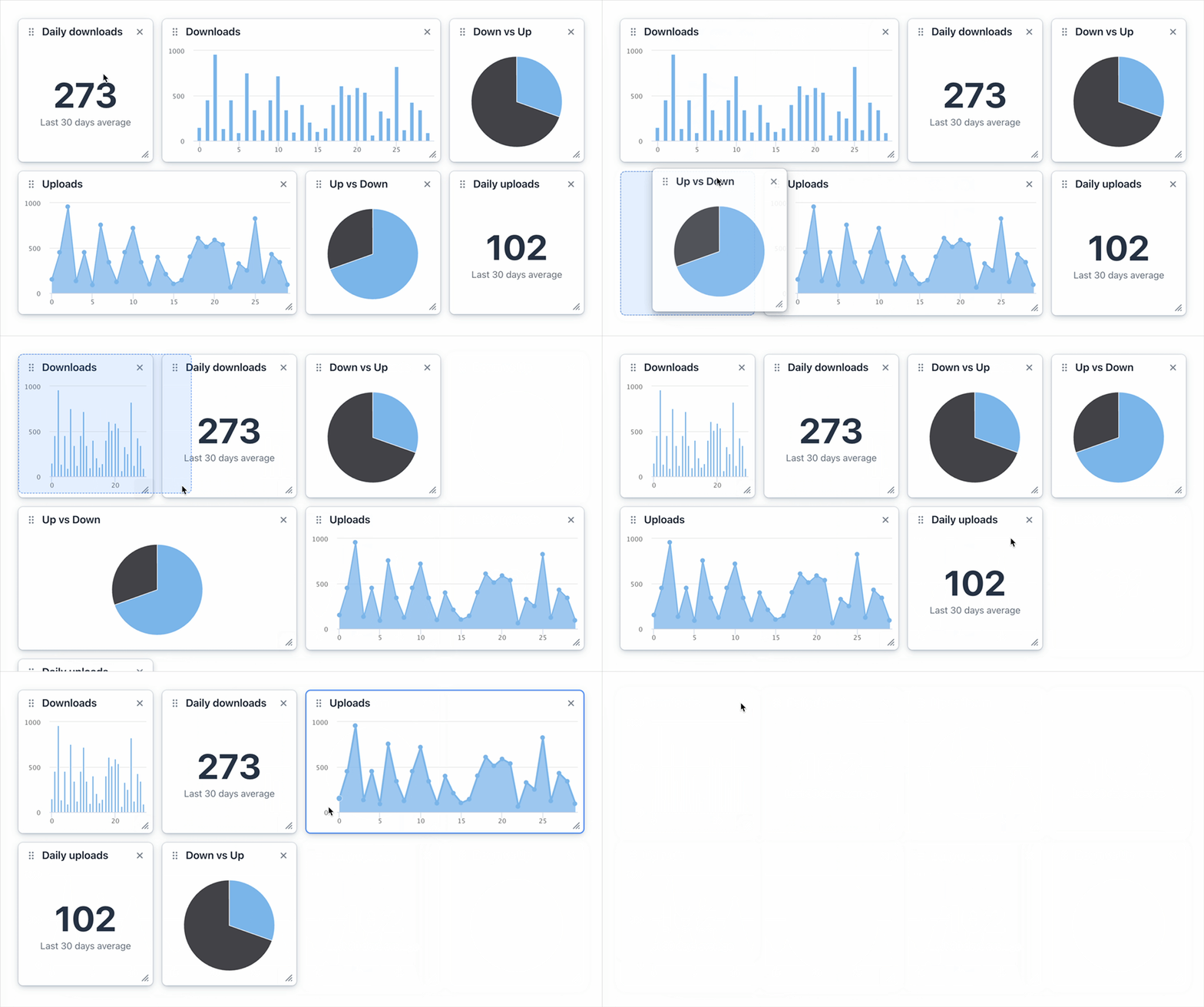
Drag-and-drop is a type of path-based gesture that actually requires a high degree of dexterity: the user needs to point at something, and, while keeping the pointer “pressed”, move it to the desired target destination on the screen, in a single uninterrupted motion. This can be tricky for many users, e.g. the elderly, people with carpal tunnel syndrome, in addition to various other disabilities. So an alternative interaction model was needed.
The arrow keys on a keyboard are the most obvious alternative for drag gestures, but to use them you first need to be able to select a widget to perform the operation on.
So, we decided that widgets are traversed using the tab key, selected with the space key. Once selected, arrow keys could be used to move the widget, and, in combination with a shift key modifier, resize it. When done moving and resizing, Esc could be used to deselect the widget.
 So far so good. However, not all users have a keyboard. As an example, touch device users typically do not have one (except for the on-screen virtual keyboard, which would not be available in this scenario). WCAG actually requires that any path-based gesture has a pointer-based single-point alternative, where single-point means a single click or tap. A keyboard-based alternative to drag gestures would not be sufficient to conform to WCAG – a visible, clickable alternative was required.
Move and Resize Modalities
We did not want to have click-targets (essentially buttons) for these operations always visible in the widget, as it would become awfully crowded and probably quite confusing for users, so we decided that dedicated modes, in which these would be available, were needed. But how should those modes be activated?
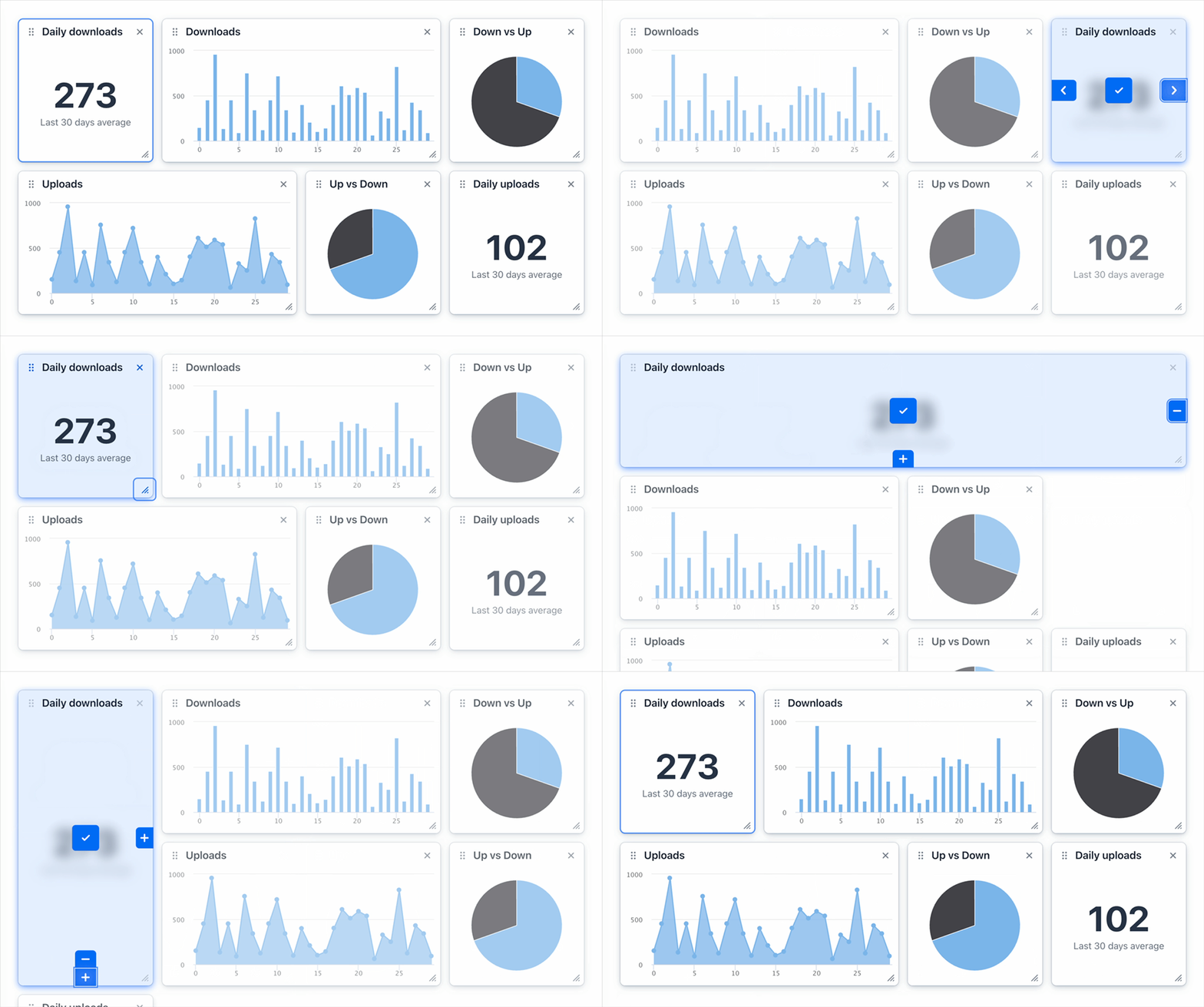
The drag-handle in the widget’s header was originally intended to be just a visual cue for draggability, as the widget can be grabbed anywhere to move it, but we decided that it could double as the activation trigger for a dedicated move-mode, revealing buttons for moving the widget back and forward, and a third button for applying the current position and deactivating move-mode.
Similarly, the resize handle in the bottom right corner could double as an activation trigger for a dedicated resize-mode, that reveals buttons for increasing and decreasing the widget’s column span and row span, and a fifth button for applying the current size and deactivating resize-mode.
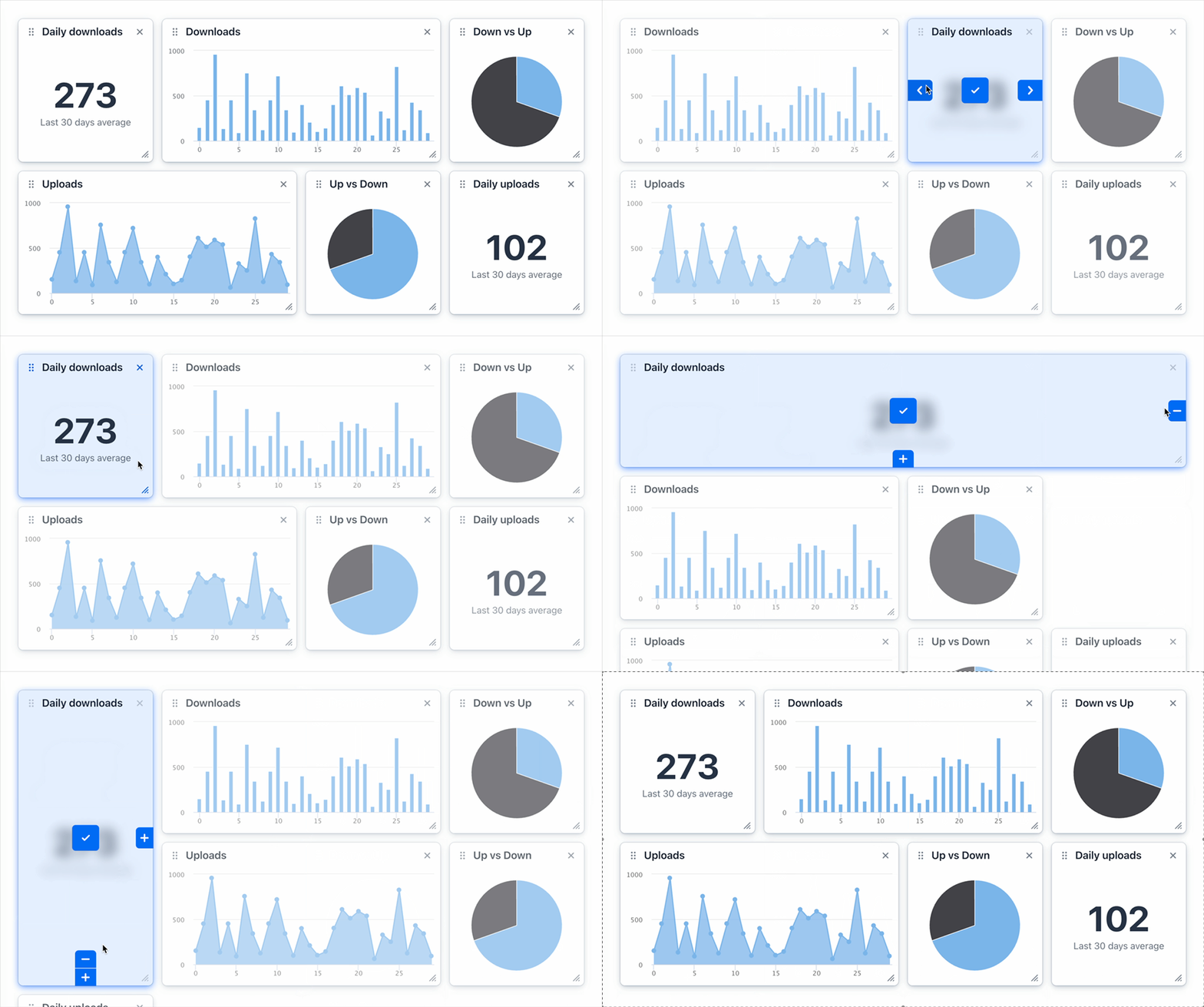
Both the move and resize mode trigger buttons naturally got aria-labels to make them screen reader friendly.
These modes and their respective activation triggers provided a nice bonus: if we made them keyboard-focusable they could act as an alternative to the arrow-key based keyboard interactions that would provide better discoverability, especially for screen reader users.
To wrap all this together in a pointer, keyboard, and screen reader friendly package, we added an invisible button that represented the widget’s focus target and selection trigger: as the only tab stops initially available in the dashboard, tabbing would traverse the selection button of each widget. The button has an aria-label that identifies it as the selection button for its widget for screen readers. A bit of css was used to set the button’s position and size to cover the entire surface area of the widget, so that clicking anywhere on the widget would trigger it.
Triggering the selection button with a click, tap or, once keyboard-focused, Enter or space, activates a focus trap that traps keyboard focus within the widget, allowing traversal only between its move, resize, and remove buttons, as well as the selection button that, once triggered again, would deactivate the mode and allow tab to traverse beween widgets again.
Announcing Edit Operations
The last piece of the accessibility puzzle was the dilemma of how to make screen reader users aware of the results of the move and resize operations that they would now be easily able to discover and perform. Sighted users can of course see that the widget has moved or resized, but screen reader users would only be aware that they had triggered a button, without insight into the results of that operation. Some kind of live announcements would clearly be needed to convey that reliably.
We decided not to implement those in the Dashboard itself, as it would have required the addition of several i18n properties for localizing those messages, but to instead provide events that developers could implement their own listeners for to trigger their own announcements in whichever way they prefer.
Over-Engineered or Just Plain Awesome?
We’ll let you be the judge of that. We are at least happy knowing that we have built what is probably one of the most accessible user-editable dashboard components on the market. That being said, we are committed to making it even better, so if you discover an accessibility issue – or any other problem for that matter – please create a ticket in Vaadin’s Web Components repository.