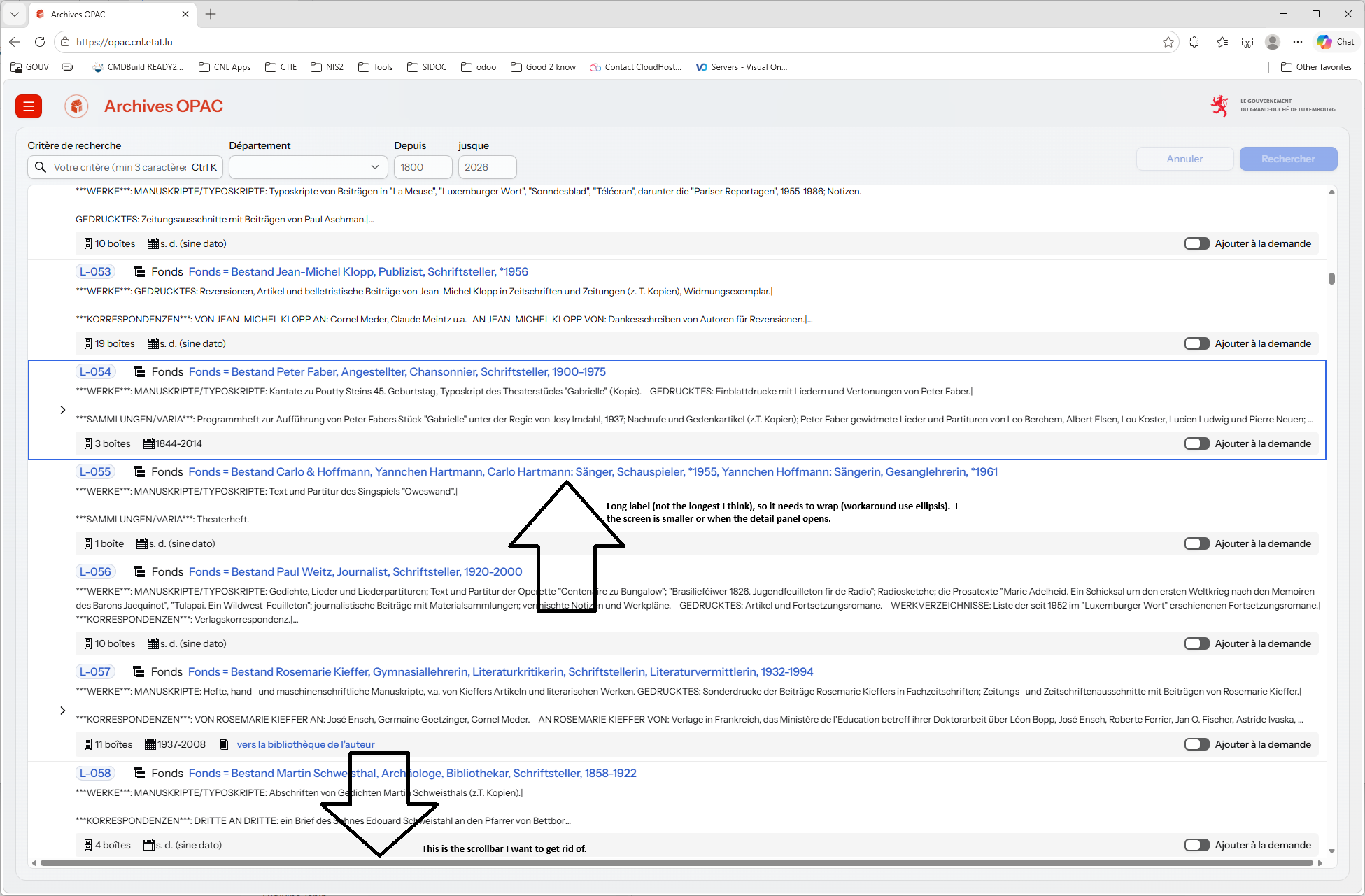
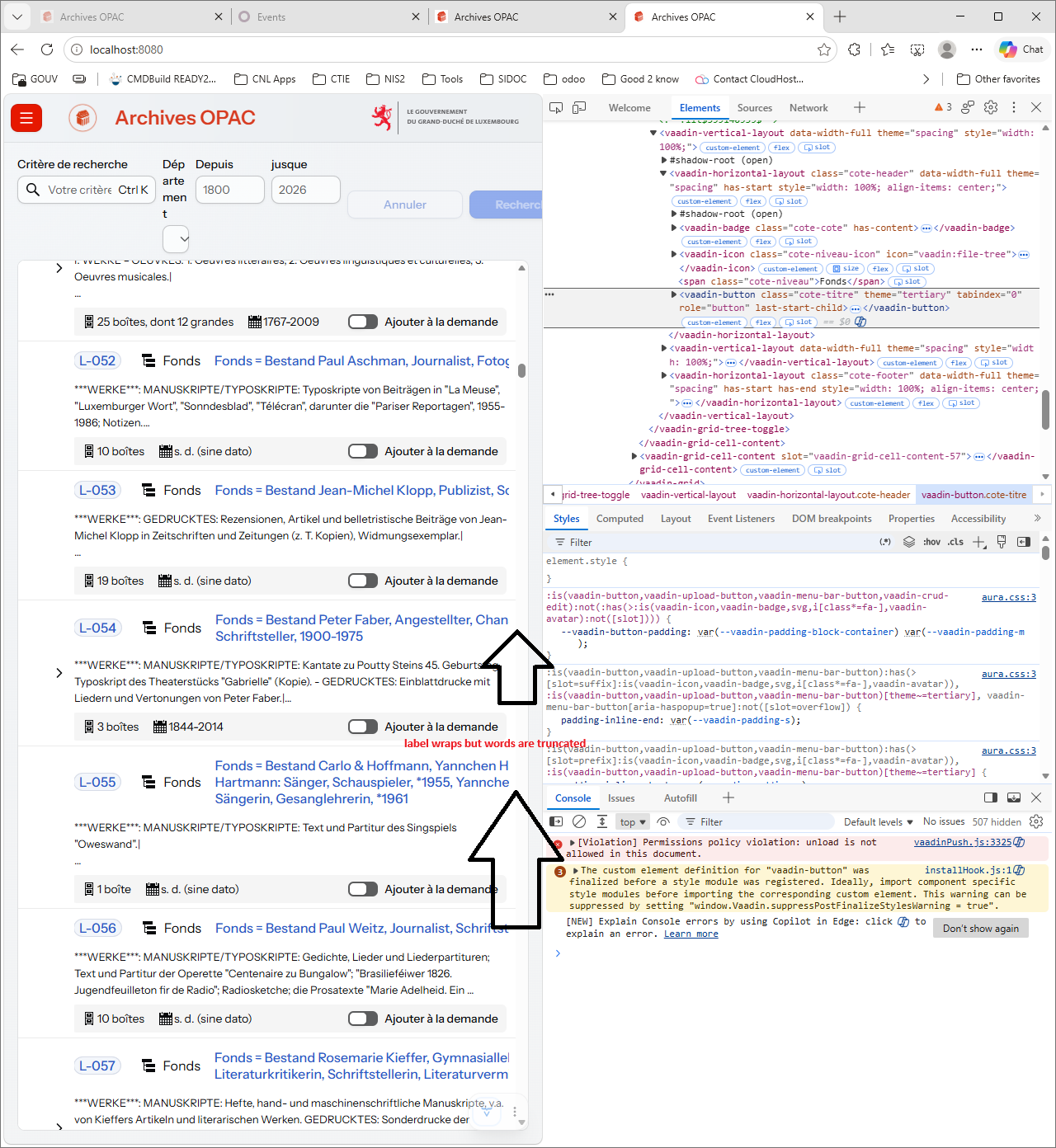
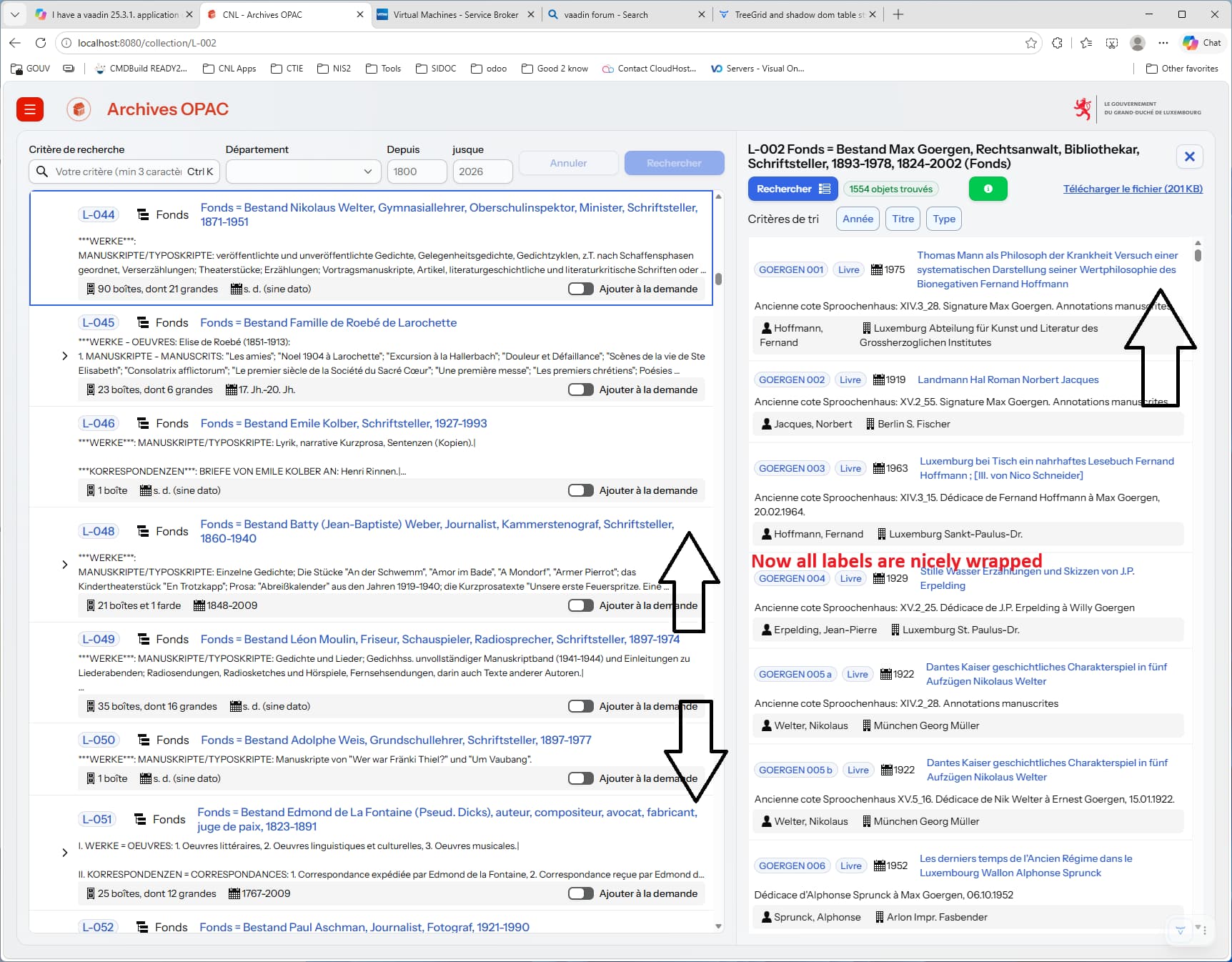
I have a MasterDetail layout (25.3.1) and a TreeGrid with a custom column renderer. I the column (horizontal layout, setWidthFull) I have a badge, a label an icon and a button (tertiary). That button activates the Detail part if you click it (showing the details for the row).
Unfortunately the titles displayed on the button can be extremely long. So I styled the button using:
But with the use of “display: contents” I get a horizontal scrollbar that is not needed in the grid.
I could remove this scrollbar by adding an “overflow-x: hidden” to the table in the shadow dom (it works in the dev tools in the browser), but unfortunately the table has no part attribute, just an id and a role, which means I can’t select the table in my css to change the overflow-x.
Prior to 25 there was the option to add css files in a components folder, but I think to remember that his has been deprecated.
Is there a way today to easily add the overflow-x css to the table in the shadow dom?
Or is there a different way to style the tertiary button in order to make use the available with an wrap the text (or ellipse the overflow text).
Thanks. Hard to give a comprehensive answer without knowing the full layout configuration and additional CSS you might have there.
It looks like you’re using the Aura theme. Button labels should wrap by default, so you would only need to make sure the button width doesn’t grow bigger than the container allows. You could try the following for the buttons:
vaadin-button {
  min-width: 5em; /* Allow the button to shrink below its natural width, but not completely to zero */
  max-width: 100%; /* Make sure the button never exceeds the container width */
}