Vaadin

Join Vaadin Log In

Vaadin user interface components are built on a skeleton of interfaces and abstract classes that define and implement the features common to all components and the basic logic how the component states are serialized between the server and the client.

This section gives details on the basic component interfaces and abstractions. The layout and other component container abstractions are described in Chapter 6, Managing Layout. The interfaces that define the Vaadin data model are described in Chapter 9, Binding Components to Data.


All components also implement the Paintable interface, which is used for serializing ("painting") the components to the client, and the reverse VariableOwner interface, which is needed for deserializing component state or user interaction from the client.

In addition to the interfaces defined within the Vaadin framework, all components implement the java.io.Serializable interface to allow serialization. Serialization is needed in many clustering and cloud computing solutions.

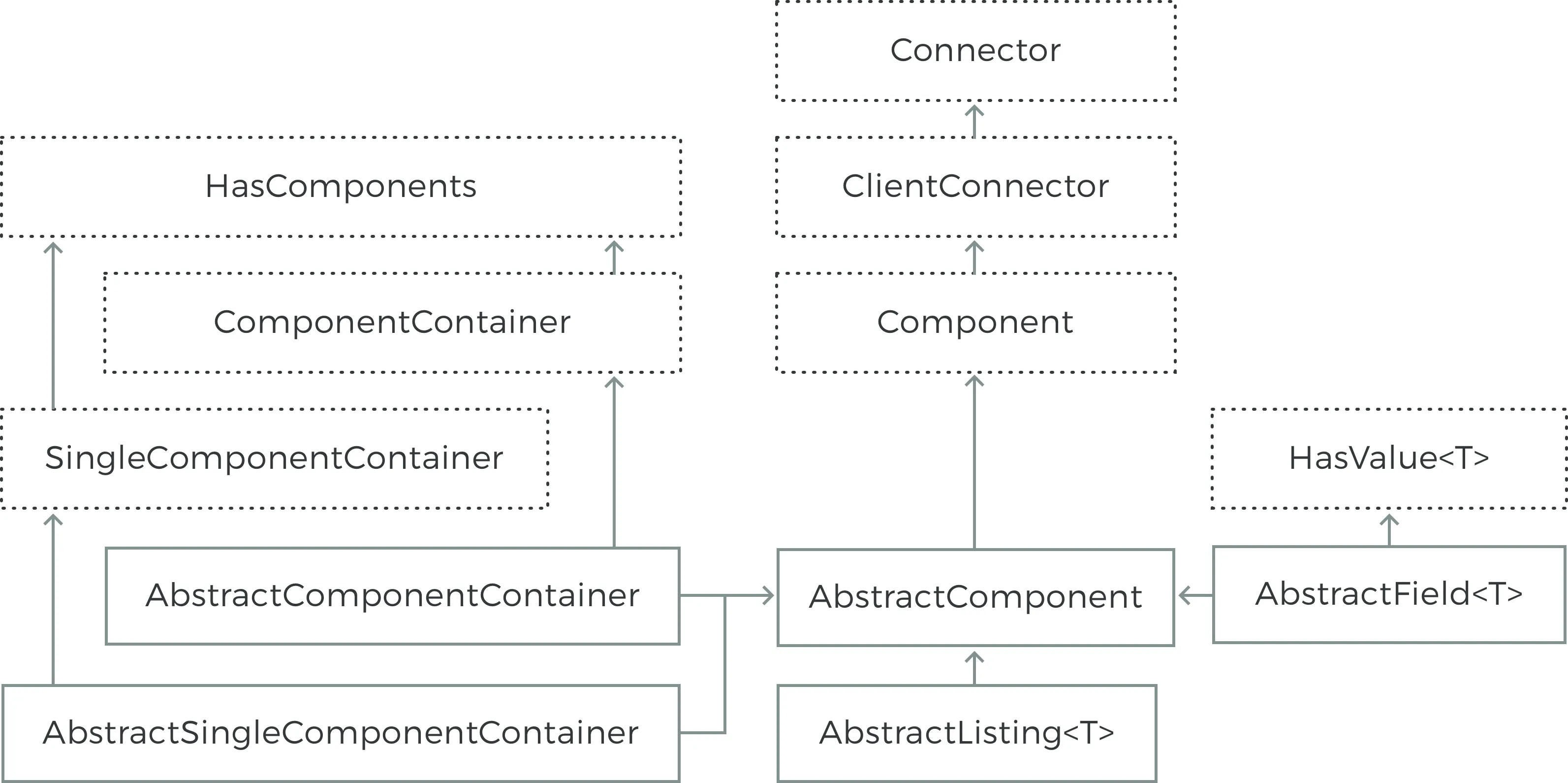
The Component interface is paired with the AbstractComponent class, which implements all the methods defined in the interface.

Components are laid out in the user interface hierarchically. The layout is managed by layout components, or more generally components that implement the ComponentContainer interface. Such a container is the parent of the contained components.

The getParent() method allows retrieving the parent component of a component. While there is a setParent(), you rarely need it as you usually add components with the addComponent() method of the ComponentContainer interface, which automatically sets the parent.

A component does not know its parent when the component is created, so you can not refer to the parent in the constructor with getParent(). Also, it is not possible to fetch a reference to the application object with getApplication() before having a parent. For example, the following is invalid:

public class AttachExample extends CustomComponent {
    public AttachExample() {
        // ERROR: We can't access the application object yet.
        ClassResource r = new ClassResource("smiley.jpg",
                                            getApplication());
        Embedded image = new Embedded("Image:", r); 
        setCompositionRoot(image);
    }
}

Adding a component to an application triggers calling the attach() method for the component. Correspondingly, removing a component from a container triggers calling the detach() method. If the parent of an added component is already connected to the application, the attach() is called immediately from setParent().

public class AttachExample extends CustomComponent {
    public AttachExample() {
    }
    
    @Override
    public void attach() {
        super.attach(); // Must call.
        
        // Now we know who ultimately owns us.
        ClassResource r = new ClassResource("smiley.jpg",
                                            getApplication());
        Embedded image = new Embedded("Image:", r); 
        setCompositionRoot(image);
    }
}

The attachment logic is implemented in AbstractComponent, as described in Section 5.2.2, “AbstractComponent.

Fields are components that have a value that the user can change through the user interface. Figure 5.3, “Field Components” illustrates the inheritance relationships and the important interfaces and base classes.


Field components are built upon the framework defined in the Field interface and the AbstractField base class.

Fields are strongly coupled with the Vaadin data model. The field value is handled as a Property of the field component. Selection fields allow management of the selectable items through the Container interface.

The description of the field interfaces and base classes is broken down in the following sections.

The Field interface inherits the Component superinterface and also the Property interface to have a value for the field. AbstractField is the only class implementing the Field interface directly. The relationships are illustrated in Figure 5.4, “Field Interface Inheritance Diagram”.


You can set the field value with the setValue() and read with the getValue() method defined in the Property interface. The actual value type depends on the component.

The Field interface defines a number of attributes, which you can retrieve or manipulate with the corresponding setters and getters.

description

All fields have a description. Notice that while this attribute is defined in the Field component, it is implemented in AbstractField, which does not directly implement Field, but only through the AbstractField class.

required

A field can be marked as required and a required indicator marker (usually * character) is displayed in front of the field. If such fields are validated but are empty, the error indicator is shown and the component error is set to the text defined with the requiredError attribute (see below). Without validation, the required indicator is merely a visual guide.

requiredError

Defines the error message to show when a value is required for a field but no value is given. The error message is set as the component error for the field and is usually displayed in a tooltip. The Form component can display the error message in a special error indicator area.

Table of Contents

Preface
1. Introduction
1.1. Overview
1.2. Example Application Walkthrough
1.3. Support for the Eclipse IDE
1.4. Goals and Philosophy
1.5. Background
2. Getting Started with Vaadin
2.1. Installing Vaadin
2.2. Setting up the Development Environment
2.3. QuickStart with Eclipse
2.4. Your First Project with Vaadin
3. Architecture
3.1. Overview
3.2. Technological Background
3.3. Applications as Java Servlet Sessions
3.4. Client-Side Engine
3.5. Events and Listeners
4. Writing a Web Application
4.1. Overview
4.2. Managing the Main Window
4.3. Child Windows
4.4. Handling Events with Listeners
4.5. Referencing Resources
4.6. Shutting Down an Application
4.7. Handling Errors
4.8. Setting Up the Application Environment
5. User Interface Components
5.1. Overview
5.2. Interfaces and Abstractions
5.3. Common Component Features
5.4. Label
5.5. Link
5.6. TextField
5.7. RichTextArea
5.8. Date and Time Input
5.9. Button
5.10. CheckBox
5.11. Selecting Items
5.12. Table
5.13. Tree
5.14. MenuBar
5.15. Embedded
5.16. Upload
5.17. Form
5.18. ProgressIndicator
5.19. Slider
5.20. Component Composition with CustomComponent
6. Managing Layout
6.1. Overview
6.2. Window and Panel Root Layout
6.3. VerticalLayout and HorizontalLayout
6.4. GridLayout
6.5. FormLayout
6.6. Panel
6.7. SplitPanel
6.8. TabSheet
6.9. Accordion
6.10. Layout Formatting
6.11. Custom Layouts
7. Visual User Interface Design with Eclipse (experimental)
7.1. Overview
7.2. Creating a New CustomComponent
7.3. Using The Visual Editor
7.4. Structure of a Visually Editable Component
8. Themes
8.1. Overview
8.2. Introduction to Cascading Style Sheets
8.3. Creating and Using Themes
8.4. Creating a Theme in Eclipse
9. Binding Components to Data
9.1. Overview
9.2. Properties
9.3. Holding properties in Items
9.4. Collecting items in Containers
10. Developing Custom Components
10.1. Overview
10.2. Doing It the Simple Way in Eclipse
10.3. Google Web Toolkit Widgets
10.4. Integrating a GWT Widget
10.5. Defining a Widget Set
10.6. Server-Side Components
10.7. Using a Custom Component
10.8. GWT Widget Development
11. Advanced Web Application Topics
11.1. Special Characteristics of AJAX Applications
11.2. Application-Level Windows
11.3. Embedding Applications in Web Pages
11.4. Debug and Production Mode
11.5. Resources
11.6. Shortcut Keys
11.7. Printing
11.8. Portal Integration
11.9. Google App Engine Integration
11.10. Common Security Issues
11.11. URI Fragment and History Management with UriFragmentUtility
11.12. Capturing HTTP Requests
A. User Interface Definition Language (UIDL)
A.1. API for Painting Components
A.2. JSON Rendering
B. Songs of Vaadin
Index