Images and Other Resources
- Resource Interfaces and Classes
- File Resources
- Class Loader Resources
- Theme Resources
- Stream Resources
Web applications can display various resources, such as images, other embedded content, or downloadable files, that the browser has to load from the server. Image resources are typically displayed with the Image component or as component icons. Embedded browser frames can be displayed with BrowserFrame, and other content with the Embedded component, as described in "Embedded Resources". Downloadable files are usually provided by clicking a Link or using the FileDownloader extension.
There are several ways to how such resources can be provided by the web server. Static resources can be provided without having to ask for them from the application. For dynamic resources, the user application must be able to create them dynamically. The resource request interfaces in Vaadin allow applications to both refer to static resources as well as dynamically create them. The dynamic creation includes the StreamResource class and the RequestHandler described in "Request Handlers".
Vaadin also provides low-level facilities for retrieving the URI and other parameters of a HTTP request. We will first look into how applications can provide various kinds of resources and then look into low-level interfaces for handling URIs and parameters to provide resources and functionalities.
Notice that using request handlers to create "pages" is not normally meaningful in Vaadin or in AJAX applications generally. Please see "AJAX" for a detailed explanation.
Resource Interfaces and Classes
The resource classes in Vaadin are grouped under two interfaces: a generic Resource interface and a more specific ConnectorResource interface for resources provided by the servlet.
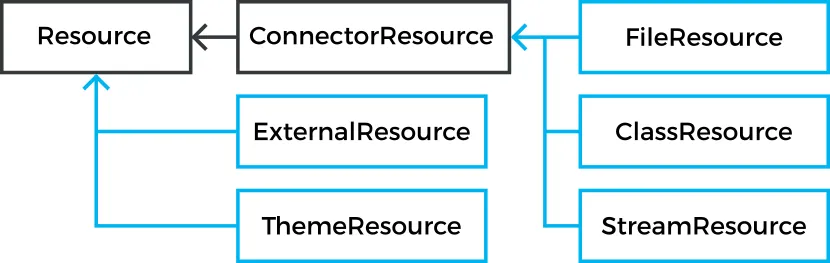
File Resources
File resources are files stored anywhere in the file system. As such, they can not be retrieved by a regular URL from the server, but need to be requested through the Vaadin servlet. The use of file resources is typically necessary for persistent user data that is not packaged in the web application, which would not be persistent over redeployments.
A file object that can be accessed as a file resource is defined with the standard java.io.File class. You can create the file either with an absolute or relative path, but the base path of the relative path depends on the installation of the web server. For example, with Apache Tomcat, the default current directory would be the installation path of Tomcat.
In the following example, we provide an image resource from a file stored in the web application. Notice that the image is stored under the WEB-INF folder, which is a special folder that is never accessible using an URL, unlike the other folders of a web application. This is a security solution - another would be to store the resource elsewhere in the file system.
Source code
Java
// Find the application directory
String basepath = VaadinService.getCurrent()
                  .getBaseDirectory().getAbsolutePath();

// Image as a file resource
FileResource resource = new FileResource(new File(basepath +
                        "/WEB-INF/images/image.png"));

// Show the image in the application
Image image = new Image("Image from file", resource);

// Let the user view the file in browser or download it
Link link = new Link("Link to the image file", resource);
In a Maven based Vaadin project the image file should be located inside src/main/webapp/WEB-INF/images/image.png.
Class Loader Resources
The ClassResource allows resources to be loaded from the class path using Java Class Loader. Normally, the relevant class path entry is the WEB-INF/classes folder under the web application, where the Java compilation should compile the Java classes and copy other files from the source tree.
The one-line example below loads an image resource from the application package and displays it in an Image component.
Source code
Java
layout.addComponent(new Image(null,
        new ClassResource("smiley.jpg")));
Theme Resources
Theme resources of ThemeResource class are files, typically images, included in a theme. A theme is located with the path VAADIN/themes/themename in a web application. The name of a theme resource is given as the parameter for the constructor, with a path relative to the theme folder.
Source code
Java
// A theme resource in the current theme ("mytheme")
// Located in: VAADIN/themes/mytheme/img/themeimage.png
ThemeResource resource = new ThemeResource("img/themeimage.png");

// Use the resource
Image image = new Image("My Theme Image", resource);
To use theme resources, you must set the theme for the UI. See "Themes" for more information regarding themes.
Stream Resources
Stream resources allow creating dynamic resource content. Charts are typical examples of dynamic images. To define a stream resource, you need to implement the StreamResource.StreamSource interface and its getStream() method. The method needs to return an InputStream from which the stream can be read.
The following example demonstrates the creation of a simple image in PNG image format.
Source code
Java
import java.awt.image.*;

public class MyImageSource implements StreamSource {
    ByteArrayOutputStream imagebuffer = null;
    int reloads = 0;

    // This method generates the stream contents
    public InputStream getStream () {
        // Create an image
        BufferedImage image = new BufferedImage (400, 400,
                                  BufferedImage.TYPE_INT_RGB);
        Graphics2D drawable = image.createGraphics();

        // Draw something static
        drawable.setStroke(new BasicStroke(5));
        drawable.setColor(Color.WHITE);
        drawable.fillRect(0, 0, 400, 400);
        drawable.setColor(Color.BLACK);
        drawable.drawOval(50, 50, 300, 300);

        // Draw something dynamic
        drawable.setFont(new Font("Montserrat",
                                  Font.PLAIN, 48));
        drawable.drawString("Reloads=" + reloads, 75, 216);
        reloads++;
        drawable.setColor(new Color(0, 165, 235));
        int x= (int) (200-10 + 150*Math.sin(reloads * 0.3));
        int y= (int) (200-10 + 150*Math.cos(reloads * 0.3));
        drawable.fillOval(x, y, 20, 20);

        try {
            // Write the image to a buffer
            imagebuffer = new ByteArrayOutputStream();
            ImageIO.write(image, "png", imagebuffer);

            // Return a stream from the buffer
            return new ByteArrayInputStream(
                imagebuffer.toByteArray());
        } catch (IOException e) {
            return null;
        }
    }
}
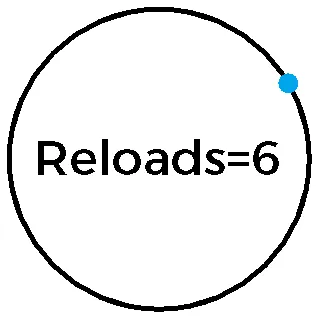
The content of the generated image is dynamic, as it updates the reloads counter with every call. The ImageIO. write() method writes the image to an output stream, while we had to return an input stream, so we stored the image contents to a temporary buffer.
Below we display the image with the Image component.
Source code
Java
// Create an instance of our stream source.
StreamSource imagesource = new MyImageSource();

// Create a resource that uses the stream source and give it
// a name. The constructor will automatically register the
// resource in the application.
StreamResource resource =
        new StreamResource(imagesource, "myimage.png");

// Create an image component that gets its contents
// from the resource.
layout.addComponent(new Image("Image title", resource));
The resulting image is shown in A stream resource.
Another way to create dynamic content is a request handler, described in "Request Handlers".