Handling Errors
- Error Indicator and Message
- Connection Fault
- Customizing System Messages
- Handling Uncaught Exceptions
Error Indicator and Message
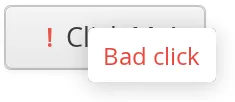
All components have a built-in error indicator that is turned on if validating the component fails, and can be set explicitly with setComponentError(). Usually, the error indicator is placed right of the component caption. The error indicator is part of the component caption, so its placement is usually managed by the layout in which the component is contained, but some components handle it themselves. Hovering the mouse pointer over the field displays the error message.
Source code
Java
textfield.setComponentError(new UserError("Bad value"));
button.setComponentError(new UserError("Bad click"));
The result is shown in Error Indicator Active.
Connection Fault
If the connection to the server is lost, Vaadin application shows a "lost connection" notification and tries to restore the connection. After several retries, an error message is shown. You can customize the messages, timeouts, and the number of reconnect attempts in the ReconnectDialogConfiguration object, which you can access from your UI with getReconnectDialogConfiguration().
Customizing System Messages
System messages are notifications that indicate a major invalid state that usually requires restarting the application. Session timeout is perhaps the most typical such state.
System messages are strings managed in the SystemMessages class. Each message has four properties: a short caption, the actual message, a URL to which to redirect after displaying the message, and property indicating whether the notification is enabled.
You can override the default system messages by setting the SystemMessagesProvider in the VaadinService. You need to implement the getSystemMessages() method, which should return a SystemMessages object. The easiest way to customize the messages is to use a CustomizedSystemMessages object.
You can set the system message provider in the servletInitialized() method of a custom servlet class, for example as follows:
Source code
Java
getService().setSystemMessagesProvider(
    new SystemMessagesProvider() {
    @Override
    public SystemMessages getSystemMessages(
        SystemMessagesInfo systemMessagesInfo) {
        CustomizedSystemMessages messages =
                new CustomizedSystemMessages();
        messages.setCommunicationErrorCaption("Comm Err");
        messages.setCommunicationErrorMessage("This is bad.");
        messages.setCommunicationErrorNotificationEnabled(true);
        messages.setCommunicationErrorURL("https://vaadin.com/");
        return messages;
    }
});
See "Vaadin Servlet, Portlet, and Service" for information about customizing Vaadin servlets.
Handling Uncaught Exceptions
Handling events can result in exceptions either in the application logic or in the framework itself, but some of them may not be caught properly by the application. Any such exceptions are eventually caught by the framework. It delegates the exceptions to the DefaultErrorHandler, which displays the error as a component error, that is, with a small red "!" -sign (depending on the theme). If the user hovers the mouse pointer over it, the entire backtrace of the exception is shown in a large tooltip box.
You can customize the default error handling by implementing a custom ErrorHandler and enabling it with setErrorHandler() in any of the components in the component hierarchy, including the UI, or in the VaadinSession object. You can either implement the ErrorHandler or extend the DefaultErrorHandler. In the following example, we modify the behavior of the default handler.
Source code
Java
// Here's some code that produces an uncaught exception
final VerticalLayout layout = new VerticalLayout();
final Button button = new Button("Click Me!", event ->
        ((String)null).length()); // Null-pointer exception
layout.addComponent(button);

// Configure the error handler for the UI
UI.getCurrent().setErrorHandler(new DefaultErrorHandler() {
    @Override
    public void error(com.vaadin.server.ErrorEvent event) {
        // Find the final cause
        String cause = "<b>The click failed because:</b><br/>";
        for (Throwable t = event.getThrowable(); t != null;
             t = t.getCause())
            if (t.getCause() == null) // We're at final cause
                cause += t.getClass().getName() + "<br/>";

        // Display the error message in a custom fashion
        layout.addComponent(new Label(cause, ContentMode.HTML));

        // Do the default error handling (optional)
        doDefault(event);
    }
});
The above example also demonstrates how to dig up the final cause from the cause stack.
When extending DefaultErrorHandler, you can call doDefault() as was done above to run the default error handling, such as set the component error for the component where the exception was thrown. See the source code of the implementation for more details. You can call findAbstractComponent(event) to find the component that caused the error. If the error is not associated with a component, it returns null.