Managing Windows
As explained in the section called “Special Characteristics of AJAX Applications”, an AJAX web application runs in a single "web page" or a browser window. The page is generally not reloaded after it is opened initially, but it communicates user interaction with the server through AJAX communications. A window in IT Mill Toolkit is therefore much like a window in a desktop application, and less a page.
All windows, including the main window opened in the web browser using a URL,
are instances of the Window class. An application must
always have a main window object that you set with the
setMainWindow() method of the
Application class.
import com.itmill.toolkit.ui.*;

public class HelloWorld extends com.itmill.toolkit.Application {
    public void init() {
        Window main = new Window("The Main Window");
        setMainWindow(main);

        ... fill the main window with components ...
    }
}
In addition, an application can have a number of child windows. Child windows come in two main flavours: floating windows and native windows. The floating windows are the default type of windows and the preferred kind in most applications. Native windows will be discussed in detail in the section called “Native Windows”.
Floating windows (or frames) are windows inside a browser window. They are
managed by the client-side JavaScript runtime of IT Mill Toolkit. This is the
recommended type of windows and also the default style for the
Window class. IT Mill Toolkit allows for opening and
closing floating windows, refreshing one window from another, resizing
windows, and scrolling window content. Floating windows have a number of
preset window border styles. Floating windows allow Dialog
Windows and Multiple Document Interface
applications. Floating windows are by default not modal; you can set them
modal as described in the section called “Modal Windows”.
As with all user interface components, the appearance of a window and its contents is defined with themes.
In IT Mill Toolkit 4.0.x, user control of a floating window is limited to moving, resizing, and closing the window. Maximizing or minimizing are not yet supported.
You can open a new window by creating a new
Window object and adding it to the
application with addWindow() method of
the Application class. In the following
example, we use a reference (myapplication) to
the application object:
mywindow = new Window("My Window");
myapplication.addWindow(mywindow);
You close the window in a similar fashion, by calling the
removeWindow() of the
Application class:
myapplication.removeWindow (mywindow);
The following example demonstrates using a (floating) window in an application. The example manages the window using a custom component that contains a button for opening and closing the window.
/** Component contains a button that allows opening a window. */
public class WindowOpener extends CustomComponent implements Window.CloseListener {
    Window mainwindow;    // Reference to main window
    Window mywindow;    // The window to be opened
    Button openbutton;    // Button for opening the window
    Button closebutton;    // A button in the window
    Label  explanation; // A descriptive text

    public WindowOpener(String label, Window main) {
        mainwindow = main;

        /* The component consists of a button that opens the window. */
        OrderedLayout layout = new OrderedLayout ();
        layout.addComponent (openbutton = new Button (label, this, "openButtonClick"));
        layout.addComponent (explanation = new Label ("Explanation"));
        setCompositionRoot (layout);
    }

    /** Handle the clicks for the two buttons. */
    public void openButtonClick (Button.ClickEvent event) {
        /* Create a new window. */
        mywindow = new Window("My Dialog");

        /* Listen for close events for the window. */
        mywindow.addListener((Window.CloseListener) this);

        /* Add components in the window. */
        mywindow.addComponent(new Label("A text label in the window."));
        closebutton = new Button("Close", this, "closeButtonClick");
        mywindow.addComponent(closebutton);

        /* A new window is added in the application. */
        mainwindow.getApplication().addWindow(mywindow);

        /* Allow opening only one window at a time. */
        openbutton.setEnabled(false);

        explanation.setValue("Window opened");
    }

    /** Handle Close button click and close the window. */
    public void closeButtonClick (Button.ClickEvent event) {
        /* Windows are managed by the application object. */
        mainwindow.getApplication().removeWindow (mywindow);

        openbutton.setEnabled(true);
        explanation.setValue("Closed with button");
    }

    /** In case the window is closed otherwise. */
    public void windowClose(CloseEvent e) {
        openbutton.setEnabled(true);
        explanation.setValue("Closed with window controls");
    }
}
You can use the above custom component in the application class with:
    public void init() {
        Window main = new Window("The Main Window");
        setMainWindow(main);

        addComponent(new WindowOpener("Window Opener", main));
    }
The example implements a custom component that inherits the
CustomComponent class. It consists of a
Button that it uses to open a window and a
Label to describe the state of the
window. When the window is open, the button is disabled. When the
window is closed, the button is enabled again.
When added to an application, the screen will look as illustrated in the following screenshot:
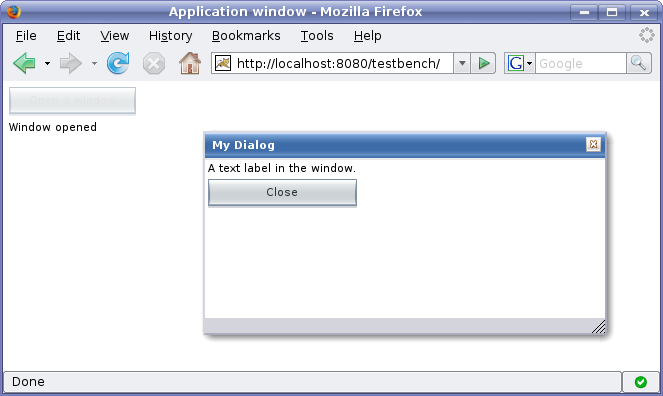
When created, a window will have a default size and
position. You can specify the size of a window with
setHeight() and
setWidth() methods. You can set the
position of the window with setPositionX()
and setPositionY() methods.
/* Create a new window. */
mywindow = new Window("My Dialog");

/* Set window size. */
mywindow.setHeight(200);
mywindow.setWidth(400);

/* Set window position. */
mywindow.setPositionX(200);
mywindow.setPositionY(50);
Notice that the size of the main window is unknown and the
getHeight and
getWidth methods will return
-1.
Native windows are managed by the operating system or its windowing system and window manager. This is the common type of windows on a desktop. As IT Mill Toolkit applications run on a web browser, the native windows are browser windows, often called popup windows, which can be separate windows or managed as tabs by the browser.
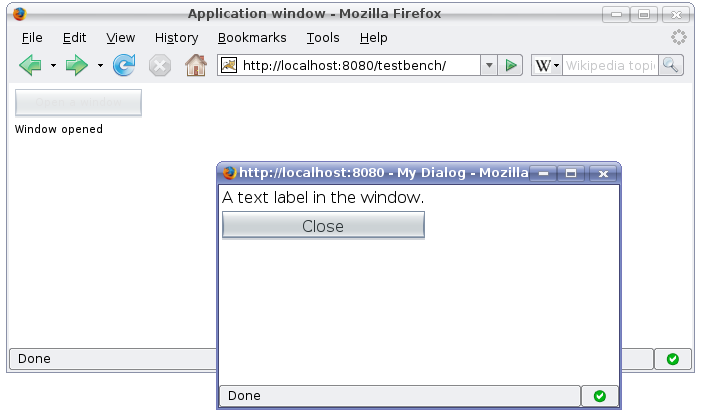
You can define a window to be a native (popup) window by setting
its style with setStyle("native"). The
following screenshot is taken from the above example in the section called “Opening and Closing a Window” with the style set to
native.
While IT Mill Toolkit 4.x supports native windows, they are
generally not recommended because of various problems they
create. For one, the browser will not tell when a window is
closed, so there will be no
windowClose() event. You will never know
if a certain window really is open or not. It also means that the
window object can be left hanging. You should never trust that a
window still exists or prevent the user from opening a new window
to replace a closed window. Many browsers also prevent opening
popup windows by default, and may do so invisibly, so the user
might be left wondering why pushing a button did not do anything.
For example, consider the above example in the section called “Opening and Closing a Window”. Notice that since the main window depends on the state of the child window: the opening button is grayed when the child window is open. If the child window was a native window and the user clicked on the close button available on all native windows, the browser would not tell the application about the event. The opening button in the main window would be left grayed for all eternity.
A modal window is a child window that has to be closed by the user before using the parent window can continue. Dialog windows are typically modal. The advantage of modal windows is simplification of user interaction, which may contribute to clarity of the user interface. Modal windows are also easy to use from development perspective, because as user interaction is isolated to them, changes in application state are more limited while the modal window is open. The disadvantage of modal windows is that they can restrict workflow too much.
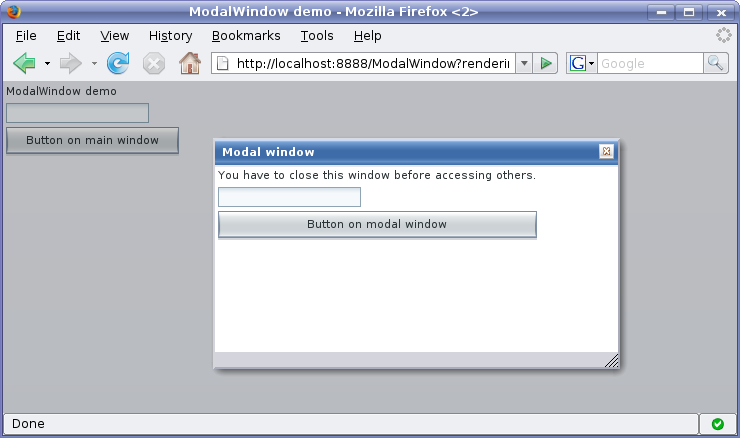
Depending on theme settings, the parent window may be grayed
while the modal window is open. This is the default behaviour at
least in base and corporate
themes.
The demo application of IT Mill Toolkit includes an example of using modal windows. Figure 3.3, “Screenshot of the Modal Window Demo Application” above is from the demo application. The example includes the source code.