Vaadin

Join Vaadin Log In

Let us follow the long tradition of first saying "Hello World!" when learning a new programming environment. After that, we can go through a more detailed example that implements the model-view-controller architecture. The two examples given are really simple, but this is mostly because Vaadin is designed to make things simple.


The first thing to note is that the example application extends com.vaadin.Application class. The Application class is used as the base class for all user applications. Instances of the Application are essentially user sessions, and one is created for each user using the application. In the context of our HelloWorld application, it is sufficient to know that the application is started when the user first accesses it and at that time init method is invoked.

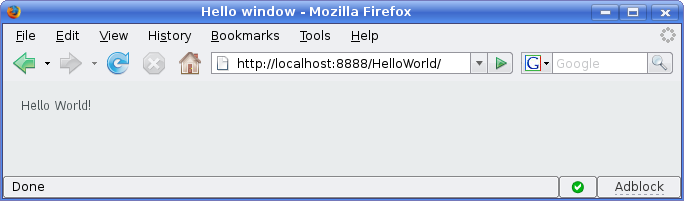
Initialization of the application first creates a new window object and sets "Hello window" as its caption. The window is then set as the main window of the application; an application can actually have many windows. This means that when a user launches the application, the contents of the "main window" are shown to the user in the web page. The caption is shown as the title of the (browser) window.

A new user interface component of class com.vaadin.ui.Label is created. The label is set to draw the text "Hello World!". Finally, the label is added to the main window. And here we are, when the application is started, it draws the text "Hello World!" to the browser window.

The following screenshot shows what the "Hello World!" program will look like in a web browser.

Before going into details, we should note that this example source code is complete and does not need any additional declaratively defined template files to be run. To run the program, you can just add it to your web application, as explained in Section 4.8, “Setting Up the Application Environment”.

Table of Contents

Preface
1. Introduction
1.1. Overview
1.2. Example Application Walkthrough
1.3. Support for the Eclipse IDE
1.4. Goals and Philosophy
1.5. Background
2. Getting Started with Vaadin
2.1. Installing Vaadin
2.2. Setting up the Development Environment
2.3. QuickStart with Eclipse
2.4. Your First Project with Vaadin
3. Architecture
3.1. Overview
3.2. Technological Background
3.3. Applications as Java Servlet Sessions
3.4. Client-Side Engine
3.5. Events and Listeners
4. Writing a Web Application
4.1. Overview
4.2. Managing the Main Window
4.3. Child Windows
4.4. Handling Events with Listeners
4.5. Referencing Resources
4.6. Shutting Down an Application
4.7. Handling Errors
4.8. Setting Up the Application Environment
5. User Interface Components
5.1. Overview
5.2. Interfaces and Abstractions
5.3. Common Component Features
5.4. Label
5.5. Link
5.6. TextField
5.7. RichTextArea
5.8. Date and Time Input
5.9. Button
5.10. CheckBox
5.11. Selecting Items
5.12. Table
5.13. Tree
5.14. MenuBar
5.15. Embedded
5.16. Upload
5.17. Form
5.18. ProgressIndicator
5.19. Slider
5.20. Component Composition with CustomComponent
6. Managing Layout
6.1. Overview
6.2. Window and Panel Root Layout
6.3. VerticalLayout and HorizontalLayout
6.4. GridLayout
6.5. FormLayout
6.6. Panel
6.7. SplitPanel
6.8. TabSheet
6.9. Accordion
6.10. Layout Formatting
6.11. Custom Layouts
7. Visual User Interface Design with Eclipse (experimental)
7.1. Overview
7.2. Creating a New CustomComponent
7.3. Using The Visual Editor
7.4. Structure of a Visually Editable Component
8. Themes
8.1. Overview
8.2. Introduction to Cascading Style Sheets
8.3. Creating and Using Themes
8.4. Creating a Theme in Eclipse
9. Binding Components to Data
9.1. Overview
9.2. Properties
9.3. Holding properties in Items
9.4. Collecting items in Containers
10. Developing Custom Components
10.1. Overview
10.2. Doing It the Simple Way in Eclipse
10.3. Google Web Toolkit Widgets
10.4. Integrating a GWT Widget
10.5. Defining a Widget Set
10.6. Server-Side Components
10.7. Using a Custom Component
10.8. GWT Widget Development
11. Advanced Web Application Topics
11.1. Special Characteristics of AJAX Applications
11.2. Application-Level Windows
11.3. Embedding Applications in Web Pages
11.4. Debug and Production Mode
11.5. Resources
11.6. Shortcut Keys
11.7. Printing
11.8. Portal Integration
11.9. Google App Engine Integration
11.10. Common Security Issues
11.11. URI Fragment and History Management with UriFragmentUtility
11.12. Capturing HTTP Requests
A. User Interface Definition Language (UIDL)
A.1. API for Painting Components
A.2. JSON Rendering
B. Songs of Vaadin
Index