Upload
The Upload component allows a user to upload
files to the server. It displays a file name entry box, a file
selection button, and an upload submit button. The user can either
write the filename in the text area or click the "Browse" button to
select a file. After the file is selected, the user sends the file by
pressing the upload submit button. The caption of the submit button
is given in the constructor of the Upload object.

The uploaded files are typically stored as files in a file system, in
a database, or as temporary objects in memory. The upload component
writes the received data to an
java.io.OutputStream so you have plenty of
freedom in processing the content.
To use the Upload component, you need to
define a class that implements the
Upload.Receiver interface. The
receiveUpload() method is called when the
user clicks the submit button. The method must return an
OutputStream. To do this, it typically creates
a File or a memory buffer where the stream is
written. The method gets the file name and MIME type of the file, as
reported by the browser.
When the upload is finished, successfully or unsuccessfully, the
Upload component will emit the
Upload.FinishedEvent event. To receive it, you
need to implement the Upload.FinishedListener
interface, and register the listening object in the
Upload component. The event object will also
include the file name, MIME type, and length of the file. Notice that
the more specific Upload.FailedEvent and
Upload.SucceededEvent events will be called in
the cases where the upload failed or succeeded, respectively.
The following example allows uploading images to
/tmp/uploads directory in (UNIX) filesystem. The
directory must exist or the upload fails silently. The component
displays the last uploaded image in an
Embedded component.
import java.io.File;
import java.io.FileOutputStream;
import java.io.OutputStream;
import com.itmill.toolkit.ui.*;
import com.itmill.toolkit.terminal.*;

public class MyUploader extends CustomComponent implements Upload.FinishedListener {
    MyUploadReceiver uploadReceiver; /* Upload receiver object. */
    Panel            root;           /* Root element for contained components. */
    Panel            imagePanel;     /* Panel that contains the uploaded image. */

    /* Custom upload receiver that has to be implemented for Upload. */
    class MyUploadReceiver implements Upload.Receiver {
        java.io.File file; /* File to write to. */
        java.io.FileOutputStream fos; /* Output stream to write to. */

        public OutputStream receiveUpload(String filename, String MIMEType) {
            file = new File("/tmp/uploads/"+filename);
            try {
                /* Open the file for writing. */
                fos = new FileOutputStream(file);
            } catch (java.io.FileNotFoundException e) {
                return null; /* Error while opening the file. Not reported here. */
            }

            return fos; /* Return the output stream. */
        }

        public File getFile () {
            return file;
        }
    }

    MyUploader () {
        root = new Panel("My Upload Component");
        setCompositionRoot(root);

        /* Create the upload receiver required by Upload. */
        uploadReceiver = new MyUploadReceiver();

        /* Create the Upload component. */
        Upload upload = new Upload ("Upload", uploadReceiver);

        /* Listen for Upload.FinishedEvent events. */
        upload.addListener(this);

        root.addComponent(upload);
        root.addComponent(new Label("Click 'Browse' to select a file and then click 'Upload'."));

        /* Create a panel for displaying the uploaded file (image). */
        imagePanel = new Panel("Uploaded image");
        imagePanel.addComponent(new Label("No image uploaded yet"));
        root.addComponent(imagePanel);
    }

    /* This is called when the upload is finished. */
    public void uploadFinished(Upload.FinishedEvent event) {
        /* Log the upload on screen. */
        root.addComponent(new Label(String.format("File %s of type '%s' uploaded.",
                                                    event.getFilename(),
                                                    event.getMIMEType())));

        /* Display the uploaded file in the image panel. */
        FileResource imageResource = new FileResource (uploadReceiver.getFile(), getApplication());
        imagePanel.removeAllComponents();
        imagePanel.addComponent(new Embedded("", imageResource));
    }
}
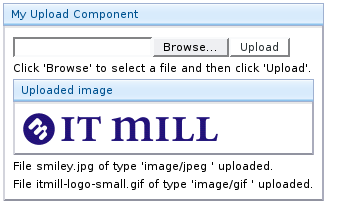
The example does not check the type of the uploaded files in any way, which will cause an error if the content is anything else but an image. The program also assumes that the MIME type of the file is resolved correctly based on the file name extension. After uploading two images, the component will look as follows.
For another example of the Upload component,
please see the Feature Browser demo application for IT Mill
Toolkit. It stores the uploaded image to a memory buffer and allows
downloading it as a resource.